
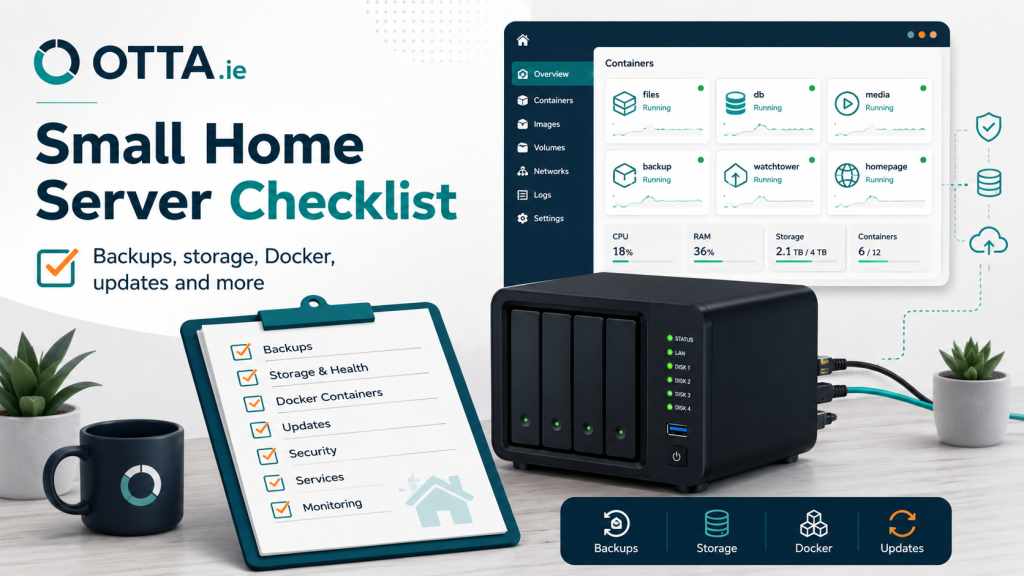
7 Things I Check First on a Small Home Server
A small home server can be very useful.
It might run Docker containers, Home Assistant, Nextcloud, Paperless-ngx, Jellyfin, Pi-hole, AdGuard Home, Nginx Proxy Manager, Tailscale, backups or a mix of different tools.
When everything works, it feels great. But over time, a small home server can also become messy, fragile or difficult to maintain.
Before changing more things, I usually check the basics first.
This is the same kind of practical thinking behind the Home Server Setup Check: understand what is running, where the risks are, and what should be improved first.
Here are the seven things I check first on a small home server.
1. What is actually running?
The first thing I check is simple: what services are running?
Many home servers start with one or two tools. Then more services are added over time. A media server. A DNS service. A reverse proxy. A dashboard. A backup container. A few test containers. Maybe something installed directly on the host as well.
After a while, it can be hard to remember what is important and what was only a test.
I usually look for:
- Running Docker containers
- Services installed directly on the host
- Internal web interfaces
- Exposed ports
- Reverse proxy entries
- Local DNS names
- Old or unused containers
- Services that start automatically after reboot
A small server should have a clear service overview. This does not need to be complicated. A simple list with service name, URL, port, purpose and storage location is often enough.
If you cannot explain what is running, it becomes much harder to maintain the system safely.
2. Are the backups real and useful?
Many people say they have backups. The important question is whether the backups are complete, recent and restorable.
For a home server, backups may need to include more than just files. Some applications also rely on databases, configuration folders, Docker volumes or application-specific export tools.
I usually check:
- What data is backed up
- Where the backup is stored
- How often it runs
- Whether databases are included
- Whether Docker compose files are included
- Whether application configuration is included
- Whether the backup is on a separate disk or system
- Whether a restore has ever been tested
A common mistake is backing up the visible files but forgetting the database. Another common mistake is storing the backup on the same disk that would fail with the main system.
A backup is not just a folder called “backup”. It needs to help you recover when something actually goes wrong.
If your setup depends on Nextcloud, Paperless-ngx, Home Assistant or other important services, backups should be one of the first things reviewed.
3. Is the storage layout clear?
Storage issues are one of the most common problems on small home servers.
A setup may use internal disks, USB drives, external storage, bind mounts, Docker volumes, network shares or a mix of all of them. That can work well, but only if the layout is understandable.
I usually check:
- Which disk holds the important data
- Where Docker data is stored
- Where media files are stored
- Where documents are stored
- Where databases are stored
- Where backups are stored
- Whether disks mount correctly after reboot
- Whether there is enough free space
- Whether folder names are clear
A server can look fine until a reboot happens and a disk does not mount correctly. Then containers may start with empty folders or missing data.
A clear storage layout makes the server easier to repair, update and document.
4. Are Docker and Compose organised properly?
Docker is very useful for home servers, especially for tools such as Jellyfin, Pi-hole, Paperless-ngx, Nextcloud, Portainer, Uptime Kuma and similar services.
But Docker setups can become confusing if containers, volumes and compose files are not organised.
I usually check:
- Whether each stack has its own folder
- Whether the
docker-compose.ymlfiles are readable - Whether container names are clear
- Whether volumes are mapped intentionally
- Whether important data is outside the container
- Whether old containers or images are still present
- Whether updates can be done safely
- Whether Portainer and command-line changes are mixed in a confusing way
The goal is not to make the setup overly formal. The goal is to make it understandable.
You should be able to answer three basic questions:
- What does this container do?
- Where does it store its data?
- How would I rebuild it if needed?
If those answers are unclear, the Docker setup should be cleaned up before adding more services.
5. Are updates controlled?
Updates are important, but random updates can break a working home server.
I usually check how updates are handled for:
- The operating system
- Docker images
- Databases
- Application containers
- Reverse proxy tools
- Home Assistant
- Monitoring tools
- Backup tools
A safer update process usually looks like this:
- Check what needs updating.
- Make a backup first.
- Update one stack or service at a time.
- Confirm the service still works.
- Keep a short note of what changed.
Automatic update tools can be useful, but they should be used carefully. A critical container update without a backup can turn a simple maintenance job into a long recovery task.
For a small home server, the best update process is usually calm, boring and repeatable.
6. Is remote access safe and limited?
Remote access is convenient, but it needs careful review.
A home server may use Tailscale, VPN, Cloudflare, port forwarding, dynamic DNS, Nginx Proxy Manager or another reverse proxy setup. Each option has different risks.
The first question is:
What can be reached from outside the home network?
I usually check:
- Whether any ports are forwarded on the router
- Which services are exposed through a reverse proxy
- Whether admin interfaces are public
- Whether HTTPS is used
- Whether strong authentication is enabled
- Whether remote access is actually needed
- Whether a VPN-style solution would be safer
- Whether old public entries should be removed
A service that is useful at home does not automatically need to be public.
For many home setups, private remote access through a VPN-style tool is safer than exposing multiple services directly to the internet.
Also, sensitive credentials should not be shared when asking for written advice. The Terms and Scope page explains the boundary clearly: written checks do not require passwords, tokens or remote login details.
7. Is there basic monitoring?
A small home server does not need enterprise monitoring. But it should tell you when obvious things are broken.
I usually check whether there is basic monitoring for:
- Important services
- Server uptime
- Disk space
- Failed containers
- DNS availability
- Backup failures
- Reverse proxy issues
- Certificate problems
Tools such as Uptime Kuma, service logs, email alerts or Telegram notifications can be enough for many small setups.
The point is simple: you should not discover a broken service weeks later by accident.
Monitoring does not have to be complicated. It just needs to make important failures visible.
Final thought
A good small home server does not need to be perfect.
It should be understandable, maintainable and recoverable.
You should know:
- What is running
- Where the data is stored
- How backups work
- How updates are handled
- What is reachable from outside
- Which services are important
- What should be fixed first
Most home server problems do not come from one big mistake. They come from small unclear details that build up over time.
That is why a structured review can help.
If you are not sure whether your setup is clean, safe and maintainable, start by reviewing the basics before changing more.
Need a written review of your home server setup?
The Home Server Setup Check is a written review for small self-hosted systems using tools such as Docker, Portainer, Pi-hole, AdGuard Home, Nginx Proxy Manager, Tailscale, Jellyfin, Plex and similar services.
You send the relevant setup details, screenshots and goals. You receive a practical written report with findings, risks and next steps.
No live call required.
No remote access required by default.
No passwords or private tokens needed.
If you are not sure which review fits your setup, start with the Setup Checks overview or send a short message through the otta.ie contact page.
Book the Home Server Setup Check
Find our advice useful?
Add OTTA as a preferred source on Google.