
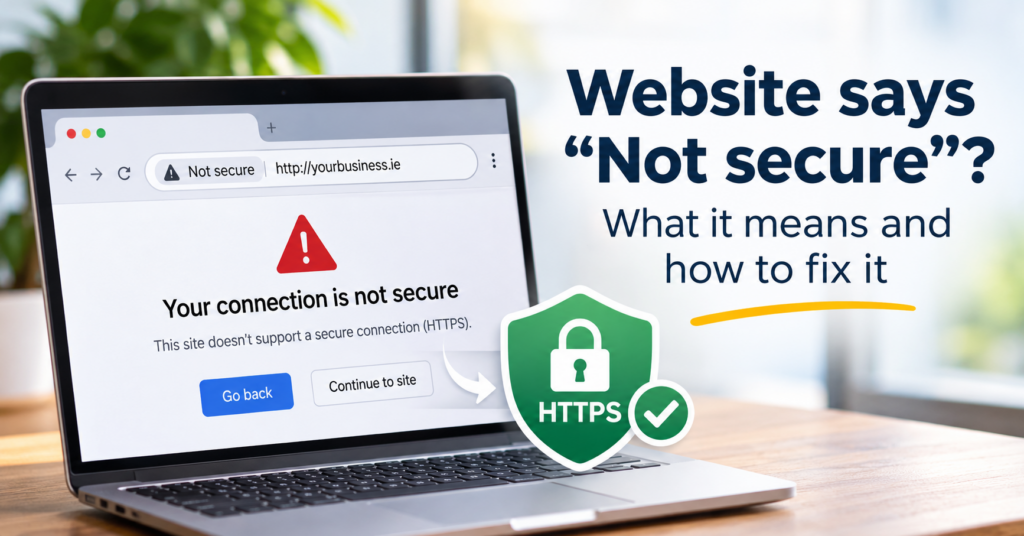
A “website not secure” warning in the address bar usually means the page came over plain HTTP, without encryption. Anyone on the same network, a café Wi-Fi for example, could in principle read or change what passes between the browser and your site. A certificate problem looks different: if your site has HTTPS but the certificate is invalid or can’t be trusted, Chrome shows a separate privacy warning.
It does not mean your website has been hacked, and it says nothing about viruses. It is a statement about the connection, not about your content.
For a visitor that difference hardly matters. They see a warning next to your business name, and some of them leave. Since autumn 2026 the warning is much harder to miss.
What changed in Chrome this year
Chrome has labelled HTTP pages “Not secure” since 2018. For years that was a small grey label next to the address, and most people ignored it.
With Chrome 154 Google switched on a setting called “Always Use Secure Connections” for all users. It rolled out gradually from late September 2026. Chrome now tries HTTPS first. If a public website doesn’t offer HTTPS, the visitor gets a full warning page and has to click through before your site loads.
Google describes the change in Chrome now warns before insecure HTTP connections.
A few details matter for a small business:
- If Chrome can load your site over HTTPS, nobody sees a warning. If it can’t, the visitor is asked on their first visit. Once they allow it, Chrome only asks again if they stay away for two weeks or more. First-time visitors, including people who just found your business on Google, are the most likely to see it.
- It only applies to public websites. Your router or printer at home is not affected.
- Visitors can switch the setting off. Almost nobody will, and nobody will do it for a business they haven’t heard of.
If your site still runs on HTTP, the question is no longer whether people notice. It’s how many click “Go back”.
How to check what your visitors see
Your own browser is a bad witness. It has visited your site a hundred times and may not warn you at all. Try this instead:
- Open a private or incognito window.
- Type your address with
http://in front, for examplehttp://yourbusiness.ie. Do it once withwww.and once without. - Watch where you land. The address should switch to
https://, and no warning page should appear in between. - Click the site information icon left of the address and open the certificate details. Check the expiry date.
- Do the same on your phone, on mobile data rather than your Wi-Fi.
If you want to see exactly what a first-time visitor sees, go to chrome://settings/security and check that “Always use secure connections” is on, with “Warn on insecure public sites” selected.
Two messages look similar but mean different things. “Not secure” next to the address means no encryption at all. A red page saying “Your connection is not private”, often with a code like NET::ERR_CERT_DATE_INVALID, means there is a certificate but something is wrong with it. The second one stops far more visitors, because most people won’t click past a red page.
The usual causes
There are five common causes.
There is no certificate at all. The site was set up years ago, before HTTPS was normal, and nobody added it later. Common on sites that haven’t been touched since around 2017.
The certificate expired. Certificates used to last a year or more. Since 15 March 2026 a newly issued certificate can last at most 200 days. From March 2027 the limit for new certificates drops to 100 days, and from March 2029 to 47 days. Certificates issued earlier keep their expiry date. Free certificates have always been short and are meant to renew automatically, but only if the renewal is set up and keeps working. Paid ones renewed by hand by someone who has since moved on are the ones that run out quietly. Expect this to happen more often, not less.
The dates are set in the CA/Browser Forum Baseline Requirements, the rules all public certificate authorities follow.
The certificate covers only one version of the address. It’s valid for yourbusiness.ie but not www.yourbusiness.ie, or the other way round. Visitors who use the address the certificate doesn’t cover may see a privacy warning.
HTTPS works, but HTTP doesn’t redirect to it. The secure version exists, yet old links, business cards and directory listings still point to http://. Chrome now tries HTTPS on its own in many cases, but the redirect should still be there.
Mixed content. The page loads over HTTPS, but an image, script or font inside it still comes from an http:// address. Chrome quietly upgrades some of these files, such as images, to HTTPS. Others, such as scripts, it blocks, and parts of the page stop working. Depending on the file, Chrome may block part of the page or show that the connection is not fully secure. You usually see this after a site moved to HTTPS and the old addresses stayed in the content.
How to fix it on a WordPress site
The certificate is the easy part. Most of the work is making sure every address on the site uses it. Take a full backup before you start, files and database. If you can, try the steps on a staging copy first.
- Get a certificate from your host. Most hosting control panels include a free one with automatic renewal. Check that the renewal is switched on. In cPanel it is usually under “SSL/TLS Status” or “Let’s Encrypt”. Make sure it covers both the address with
wwwand the one without. If your plan has no option for it, ask the host. Paying extra for a basic certificate is rarely necessary today. - Test HTTPS before you switch anything. Open
https://yourbusiness.ieand thewwwversion in a private window. Both must load without a red warning page. Don’t go further until they do. A redirect does not replace a valid certificate: it only sends every visitor straight to the error page. - Change the site address in WordPress. Under Settings → General, set “WordPress Address” and “Site Address” to
https://. You may need to log in again afterwards. If you can’t get back into the dashboard, the two addresses can be set inwp-config.phpwithWP_HOMEandWP_SITEURL. - Redirect HTTP to HTTPS. Every
http://request should get a permanent 301 redirect to thehttps://version. The best place for it is the server: a switch in the hosting panel or a rule in the.htaccessfile. If the site runs behind a service such as Cloudflare, the redirect can be set there. A redirect plugin inside WordPress only catches requests that reach WordPress, so use it only as a last resort. - Replace the old addresses in the content. Pages, images and menus still contain
http://yourbusiness.ie/.... A search-and-replace plugin fixes this in the database. Run it as a dry run first and check what it would change. - Look for mixed content. Open your main pages, press F12 and check the Console tab for “Mixed Content” messages. They usually come from a theme setting, a page builder field or a hard-coded image in a widget.
- Tell Google and update your links. In Search Console, use a Domain property or add the
https://version. Then fix the website link in your Google Business Profile, Facebook page and directory listings, so they don’t go through a redirect every time.
How long this takes depends less on WordPress than on what sits around it: the hosting, the DNS, old plugins and how many addresses are hard-coded in the content. On an older site with a page builder and years of posts, steps 5 and 6 usually take the longest.
If your site isn’t WordPress
The principle is the same everywhere: certificate, redirect, no http:// left inside the pages. Website builders such as Wix or Squarespace handle the certificate themselves. If you see “Not secure” there, the cause is usually the domain connection, for example a www record that points somewhere else.
Old hand-built sites are harder. Some use frames, where the address bar shows one page and the content comes from another, sometimes from a different server. Some sit on a hosting plan so old it can’t install a certificate. In those cases the fix is often a move to a current hosting plan, and at that point it is worth asking whether the site should be rebuilt. A site with frames is usually not usable on a phone either.
Common questions
Does “Not secure” mean my website was hacked?
No. It means the connection isn’t encrypted. A hacked site can run on HTTPS without any warning, and a clean site can show “Not secure”. If you suspect a hack, that is a separate check.
My site has no contact form or shop. Does it matter?
The risk for your visitors is lower if they never type anything in. The warning page appears anyway, and the visitor doesn’t know your site has no forms. They only see that Chrome advises them not to continue.
Do I need to pay for an SSL certificate?
For a normal business website, no. The free certificates that most hosts offer encrypt the connection in exactly the same way. Paid certificates with company validation exist, but browsers no longer show the difference in the address bar.
Does HTTPS affect my Google ranking?
Google has counted HTTPS as a small ranking signal since 2014. The bigger effect is behaviour: if people land on a warning page and go back to the results, you lose the visit whatever your position.
Why does my site look fine to me but not to my customer?
Usually because they typed or clicked a different version of the address, with or without www, or with http://. Test every combination, as described above. Your browser may also remember that it trusted your site before.
If you can’t get into your hosting
All of the above assumes you can log in to your hosting and to WordPress. If the person who built the site is gone and nobody has the logins, start there. I wrote about that situation in what to do when your web designer disappeared.
If you’re not sure where your site stands, the free Website Health Check takes a few minutes and walks you through the basics of your site. No login needed.
Find our advice useful?
Add OTTA as a preferred source on Google.