
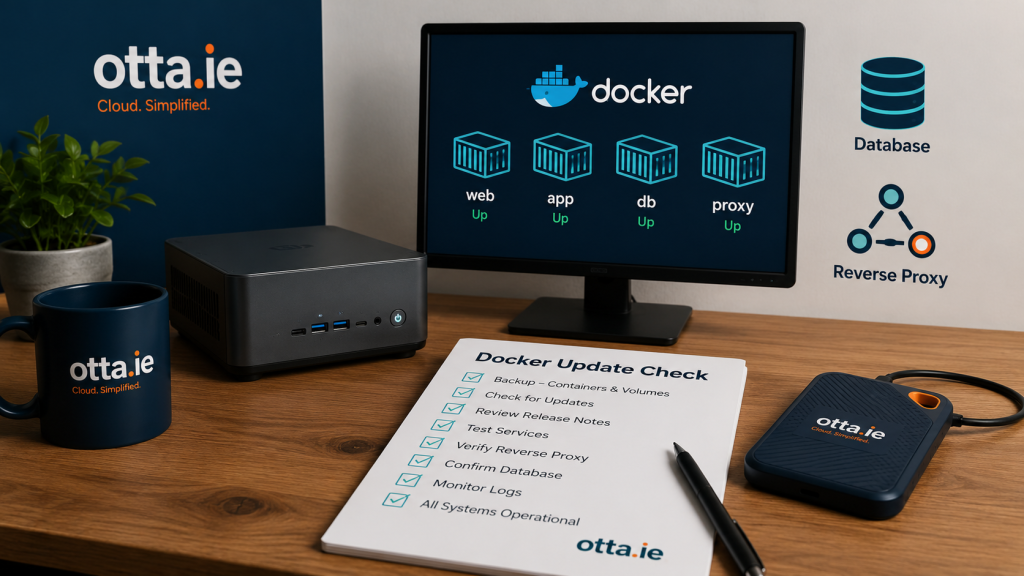
A Docker container update can look simple: pull the new image, recreate the container and hope everything comes back online.
On a small home server, that is usually not enough.
Before updating Docker containers, you should check what is running, where the data is stored, whether the backup is usable, which containers depend on databases, whether your reverse proxy will still route traffic correctly, and whether you have a realistic rollback option.
This does not need to be complicated. But it should be deliberate.
Why Docker updates can cause problems
Docker itself is not usually the problem. Most update issues come from the setup around the container.
A container may depend on a database.
A volume may not be backed up.
An environment variable may have changed.
A reverse proxy rule may point to the wrong internal port.
A container may use the latest tag without you noticing what changed.
A backup may exist, but nobody has checked whether it can actually be restored.
That is why a Docker update should not just be treated as a button click. For a small home server, it is better to spend a few minutes checking the basics before something breaks.
1. Check which containers are running
Before you update anything, make a quick note of the current state.
At minimum, check:
- Which containers are running
- Which containers are stopped
- Which images are currently used
- Which ports are exposed
- Which stack or Compose folder the service belongs to
- Whether the container is standalone or managed by Docker Compose
This matters because not every container should be updated in the same way.
A simple web application may be easy to recreate. A database container, Nextcloud stack, Paperless-ngx setup or reverse proxy should be treated more carefully.
If you use Docker Compose, also make sure you know where the correct docker-compose.yml or compose.yml file is stored.
2. Check where the data is stored
This is one of the most important checks.
A Docker container can usually be recreated. The important question is: where is the data?
Look for:
- Docker named volumes
- Bind mounts to host folders
- Database volumes
- Upload folders
- Configuration folders
- Media folders
- Consume/import folders
- Backup folders
If you do not know where the persistent data is stored, do not update blindly.
A common mistake is assuming that the container is the application. In reality, the container is usually replaceable. The persistent data is what matters.
For example, with services like Nextcloud, Paperless-ngx, WordPress, Immich, Jellyfin or Home Assistant, the important part is not just the container image. It is the combination of application files, configuration, database and stored user data.
3. Check database containers separately
Database containers deserve extra caution.
If a service uses MariaDB, MySQL, PostgreSQL or another database, check the database before updating the application container.
Important questions:
- Is the database container also being updated?
- Is the application update compatible with the current database version?
- Is there a database dump?
- Is the database stored in a persistent volume or host folder?
- Can you restore the database if the update fails?
For many home server services, the database is the most critical part of the setup. If the database is damaged or upgraded incorrectly, simply going back to the old application container may not be enough.
For smaller updates, you may only need to update the application container. For bigger changes, you should be more careful and read the release notes before touching the database.
4. Check your backup before the update
Having a backup is good. Knowing what the backup contains is better.
Before updating Docker containers, check whether your backup includes:
- The Compose file
- Environment files
- Configuration files
- Application data
- Upload folders
- Database dump
- Relevant volumes
- Any custom scripts or reverse proxy notes
Also check where the backup is stored.
A backup on the same disk as the service is useful for small mistakes, but it is not enough if that disk fails. A better setup usually includes at least one separate backup location.
The key question is simple:
Could you rebuild this service from the backup if the update went wrong?
If the answer is “I think so”, that is a warning sign.
5. Check image tags
Docker image tags matter.
Some home server setups use fixed version tags. Others use broad tags like latest, stable, lts or application-specific release tracks.
Using latest can be convenient, but it can also make updates less predictable. You may not immediately know what version you are moving from or to.
Before updating, check:
- Current image tag
- New image tag
- Whether the tag has changed meaning
- Whether the project recommends a specific tag
- Whether the update is a major version change
A small patch update is usually very different from a major application or database version jump.
For important services, predictable image tags are usually safer than blindly following whatever image is newest.
6. Check reverse proxy and internal ports
Many small home servers use a reverse proxy such as Nginx Proxy Manager, Traefik, Caddy or a similar setup.
Before updating a container, check whether the update could affect:
- Internal container ports
- Exposed host ports
- Network names
- Service names
- WebSocket settings
- Proxy headers
- HTTPS certificates
- Trusted domains or trusted origins
Some applications change internal defaults over time. Others become stricter about trusted domains, proxy headers or allowed origins.
If an update completes successfully but the service no longer opens in the browser, the container may not be broken. The reverse proxy path may simply need attention.
7. Check dependencies between containers
A Docker service often depends on other containers.
Examples:
- Web app plus database
- Application plus Redis
- Nextcloud plus database plus cron
- Paperless-ngx plus database plus broker
- Immich plus server, database, Redis and machine learning container
- WordPress plus database
- Monitoring tools that depend on network access
Before updating, check which parts belong together.
Updating one container while leaving another untouched can be fine. But you should know whether that is intentional.
For example, an application container and a cron container may need to run the same image version. A database container may not need to be updated at the same time. A Redis container may be simple to recreate, but still important for the service to start properly.
8. Check whether you have a rollback option
A rollback does not have to be perfect, but you should know what your plan is before you update.
A basic rollback plan may include:
- Previous image tag
- Backup of the Compose file
- Backup of the
.envfile - Database dump
- Copy of important configuration
- Notes of what was changed
- Confirmation that you can recreate the previous container
Rollback becomes harder if the update changes the database schema or migrates data automatically. That is why database-backed applications need more care.
Before pressing update, ask:
If this fails, what exactly would I do next?
If you cannot answer that, pause and prepare first.
9. Do not update everything at once
On a small home server, it is tempting to update all containers in one session.
That can work, but it also makes troubleshooting harder.
If five services are updated and something breaks, you now have five possible causes. If one service is updated and tested before the next one, the problem is easier to isolate.
For important services, update in small groups:
- One stack at a time
- Application and matching cron container together
- Database updates separately and carefully
- Reverse proxy only when you are ready to test access afterwards
This is slower, but safer.
10. Test the service after the update
A container being “up” does not always mean the application works.
After updating, test the service properly.
Check:
- Does the web interface load?
- Can you log in?
- Are background jobs running?
- Are uploads or imports working?
- Are mobile apps still connected?
- Are scheduled tasks still running?
- Are logs clean enough?
- Is the reverse proxy still working?
- Is monitoring still green?
For a service like Nextcloud, Paperless-ngx or Home Assistant, opening the homepage is not a full test. You should check at least one normal real-world action.
Common Docker update mistakes
Here are the mistakes I see most often in small home server setups:
- Updating without checking backups
- Not knowing where volumes are stored
- Assuming the database is included in a file backup
- Updating all containers at once
- Using
latestwithout understanding what changed - Forgetting about reverse proxy settings
- Not checking logs after the update
- Not testing the service properly
- Updating a database container casually
- Having no rollback plan
None of these are unusual mistakes. They happen because Docker makes updates look easier than they really are.
The fix is not to make your setup complicated. The fix is to make your update process more deliberate.
When a written setup check makes sense
You can do many of these checks yourself.
But if you are not sure where your data is stored, whether your backup is complete, which containers belong together, or what would happen if an update failed, a second pair of eyes can be useful.
That is exactly the kind of situation my written Home Server Setup Check is designed for.
It is not an emergency repair service and it is not a live call. It is a practical written review of your small home server setup, with attention to the parts that usually cause problems: backups, Docker services, update risk, exposed services, monitoring and basic recovery planning.
If you want to see the type of output you receive, you can also view the example Home Server Setup Check report.
A good update process is not about being afraid of changes. It is about knowing what you are changing before you change it.
Find our advice useful?
Add OTTA as a preferred source on Google.