
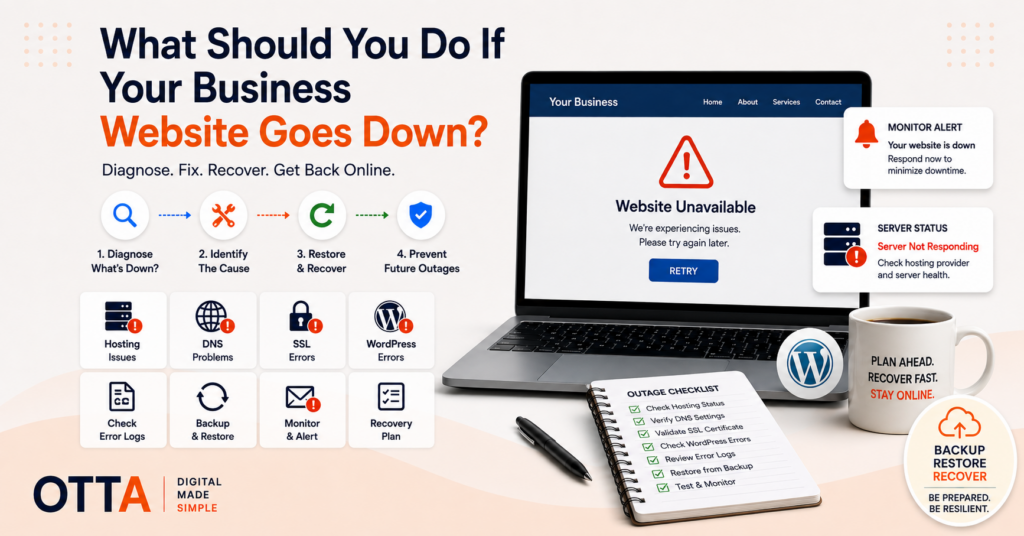
What should you do if your business website goes down?
The first thing I would recommend is: do not start changing things at random.
A website outage can be caused by hosting, DNS, SSL, WordPress, a failed update, a plugin conflict, a server problem or something as simple as your own internet connection.
The useful first step is to work out which layer is actually failing.
That makes recovery faster and reduces the risk of turning a small problem into a bigger one.
First Check Whether the Website Is Really Down
Start with the simplest possibility.
Open the website in a private or incognito browser window.
Then try from another device.
If possible, try using a different network as well.
For example:
- Your normal Wi-Fi
- Mobile data
- Another computer
If the website fails only on one device or one network, the problem may be local rather than with the website itself.
That is worth ruling out before you log into hosting and start changing settings.
If the website is technically online but you are unsure whether important parts are actually working, see How to Check Whether Your Business Website Is Actually Working.
Look at the Error Message
The exact error can tell you a lot.
Examples include:
- Server not found
- Connection timed out
- 502 Bad Gateway
- 503 Service Unavailable
- Database connection error
- SSL certificate warning
- A completely blank page
Those errors do not all point to the same problem.
A DNS failure is very different from a broken WordPress plugin.
A certificate warning is different again.
I would make a note of the exact message before doing anything else.
Check Whether the Hosting Provider Has a Problem
If the website is unavailable for everyone, the hosting platform is one of the first places I would check.
Look at:
- The hosting control panel
- The provider’s status page
- Any recent outage notifications
- Server resource warnings
If the hosting provider is already reporting an outage, changing WordPress settings will not help.
The correct response may simply be to wait for the infrastructure issue to be resolved.
Check DNS Before Assuming WordPress Is Broken
DNS is the system that connects your domain name to the server where the website lives.
If DNS is wrong or unavailable, visitors may not reach the server at all.
This can happen after:
- A domain migration
- A hosting move
- A DNS provider change
- An incorrect record update
- An expired domain
A useful clue is the type of error.
If the browser says the server cannot be found, I would investigate DNS before troubleshooting WordPress itself.
If the domain resolves correctly but the server returns an error page, the problem is probably further down the stack.
SSL Problems Can Make a Working Website Look Broken
A website can still exist on the server while visitors see a security warning instead of the page.
This can happen if the SSL certificate:
- Expired
- Was not renewed correctly
- Does not match the domain
- Was misconfigured after a migration
That is different from the website being offline.
The server may be working perfectly.
The browser simply does not trust the secure connection.
I would fix the certificate issue rather than treating it as a WordPress problem.
Think About What Changed Most Recently
If the website was working and then suddenly stopped, one of the most useful questions is:
What changed immediately before the problem started?
That might be:
- A WordPress update
- A plugin update
- A theme update
- A PHP version change
- A hosting migration
- A DNS change
- A new plugin
- A configuration change
This does not prove that the last change caused the outage.
But it gives you a much better starting point than changing several unrelated things at once.
Do Not Update Everything While the Site Is Down
This is one of the mistakes I would avoid.
If the website is already broken, installing several updates at once can make diagnosis harder.
You may lose the ability to identify which change actually mattered.
I would first capture the current state.
That may mean:
- Taking a backup if the server is still accessible
- Saving the exact error message
- Checking recent logs
- Recording what changed before the outage
Then make one controlled change at a time.
If WordPress Is the Problem, Check for Plugin or Theme Failures
If the server and DNS are working but WordPress itself is failing, plugins and themes become more likely suspects.
A failed update or incompatibility can cause:
- Fatal errors
- Blank pages
- Admin access problems
- Broken frontend pages
If you have server or file access, it may be possible to temporarily disable a plugin without logging into WordPress.
I would do this carefully and only when there is evidence that a specific plugin is involved.
Disabling every plugin at once may bring the site back, but it also makes it harder to understand what actually failed.
A Database Error Is a Different Kind of Failure
If WordPress shows an error connecting to the database, I would not start changing page content or plugins first.
The problem may involve:
- Incorrect database credentials
- The database server being unavailable
- Corruption
- Hosting resource problems
That requires a different troubleshooting path from a frontend JavaScript or theme problem.
Again, the exact error message matters.
Use Logs Instead of Guessing
If logs are available, I would check them early.
Useful sources can include:
- Web server error logs
- PHP logs
- WordPress debug logs
- Hosting platform logs
A log entry showing a fatal error from a specific plugin is much more useful than randomly reinstalling WordPress.
Logs do not always give a perfect answer, but they can quickly narrow the problem down.
Do Not Restore a Backup Too Early
A backup is extremely valuable during an outage.
But I would not automatically restore one as the first action.
First ask:
What are we trying to recover from?
If the problem is an expired SSL certificate, restoring yesterday’s WordPress files will achieve nothing.
If DNS is wrong, restoring the database will achieve nothing.
If the hosting provider has an outage, restoring the website onto the same unavailable server will achieve nothing.
Backups are a recovery tool, not a universal troubleshooting tool.
A Restore Does Not Always Fix the Cause
This point matters especially after a security incident or failed update.
Imagine a vulnerable plugin allowed an attacker into the website.
You restore a clean backup from yesterday.
The website works again.
But if the same vulnerable plugin is still installed, the original weakness still exists.
If the outage is related to security or a compromised WordPress site, see Website Security Basics for Small Businesses for the wider approach to updates, backups, access control and recovery planning.
The same principle applies to other failures.
A successful restore gets you back to a working state.
You still need to understand why the failure happened.
Check Whether Email and Other Services Are Affected Too
Sometimes an outage affects more than the website.
If DNS, the domain or hosting has a broader problem, business email may also be affected.
I would check whether:
- Email still sends and receives
- The domain is still active
- DNS records are intact
- Connected services still point to the correct server
This can help identify whether you are dealing with a WordPress failure or a wider infrastructure problem.
Use Monitoring So You Do Not Depend on a Customer Telling You
A business should ideally know the website is down before a customer reports it.
Basic uptime monitoring can periodically check whether the website responds and send an alert if it does not.
That does not prevent outages.
It reduces the time between:
the website failed
and:
somebody noticed.
For a business that depends on website enquiries, bookings or sales, that time matters.
Keep the Access Details You Need for Recovery
An outage is a bad time to discover that nobody knows the hosting password.
I would make sure the business has access to:
- The domain registrar
- DNS provider
- Hosting account
- WordPress administrator
- Backup system
- Relevant email account
Those credentials should be stored securely.
The important point is that the business is not completely dependent on one person remembering how everything works.
What I Would Check First
If a small business website went down, I would work through the incident roughly in this order:
- Confirm the website is genuinely unavailable from more than one device or network.
- Record the exact error message.
- Check the hosting provider’s status.
- Confirm the domain and DNS are working.
- Check for SSL certificate problems.
- Review what changed immediately before the outage.
- Check server and PHP logs.
- Investigate WordPress plugins, themes or database problems where relevant.
- Take or preserve a backup before making major changes.
- Restore only when the failure actually requires it.
- After recovery, identify and correct the root cause.
The goal is to narrow the problem down before making disruptive changes.
Stabilise First, Then Fix the Cause
During an outage, I would separate two goals.
Goal one: get the business back online.
Goal two: understand why it happened and prevent the same failure from happening again.
Sometimes those happen at the same time.
Sometimes the quickest safe recovery is to restore a known working state first and investigate more deeply afterwards.
What I would avoid is getting the page visible again and then treating the incident as finished.
Check the Wider Health of the Website Afterwards
An outage can be a useful reason to review the wider condition of the site.
The Free Website Health Check takes you through 25 practical questions covering security, maintenance, mobile usability, enquiries, SEO fundamentals and clarity.
You receive an immediate score, category results and a prioritised list of areas worth checking. You can also download the results as a PDF.
Start the Free Website Health Check
When Ongoing Website Care Helps
A website outage is one of the situations where ongoing care becomes much more tangible.
The value is not only installing updates.
It is knowing:
- Who responds when something fails
- Where the backups are
- How the site is restored
- Which systems need checking
- What changed before the incident
If you want an independent look at an existing website before there is an emergency, our Small Website Improvement Review identifies practical issues worth addressing without automatically recommending a rebuild.
Final Thoughts
What should you do if your business website goes down?
Do not panic and do not change everything at once.
Confirm the outage.
Identify which layer is failing.
Use the error message and logs.
Stabilise the website.
Then fix the actual cause.
The fastest recovery usually starts with diagnosis, not with guessing.
Find our advice useful?
Add OTTA as a preferred source on Google.