
Website security can sound much more complicated than it needs to be.
For a small business, the goal is not to make a website impossible to hack. No website can realistically promise that.
The goal is to reduce unnecessary risk, make common attacks harder, spot problems early and make sure the website can be recovered if something goes wrong.
That is a much more practical way to think about website security.
Start With the Basics, Not the Security Theatre
Small business website security is often sold through fear.
You may see warnings about malware, brute-force attacks, bots, vulnerabilities and blacklists, followed immediately by a recommendation to install another security product.
Some security tools are useful.
But installing a plugin is not the same as having a security strategy.
I would start with the boring fundamentals:
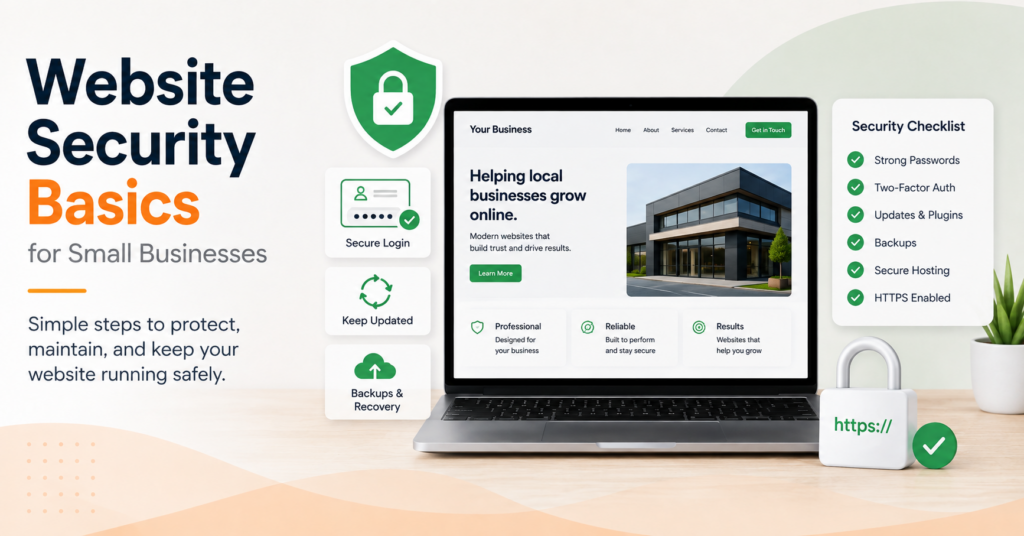
- Keep WordPress, themes and plugins updated
- Remove software you no longer use
- Use strong logins and multi-factor authentication where possible
- Keep reliable backups
- Know how the website would be restored
- Use supported PHP and hosting software
- Limit administrator access
Those steps usually matter more than adding another dashboard full of warning messages.
HTTPS Is Essential, but It Does Not Mean the Website Is Secure
Your website should use HTTPS.
Visitors should see the padlock or secure connection indicator in their browser, and the website should open without security warnings.
HTTPS encrypts the connection between the visitor and the website.
That matters for:
- Contact forms
- Login details
- Payment information
- Personal data
But HTTPS does not mean the website itself is safe from attack.
A compromised WordPress site can still have a perfectly valid SSL certificate.
So I would treat HTTPS as a basic requirement, not as proof that the website is secure.
Keep WordPress, Themes and Plugins Updated
Outdated software is one of the clearest avoidable risks on a WordPress website.
Security vulnerabilities are regularly discovered in WordPress itself, themes and plugins.
Once a vulnerability becomes public, attackers can scan large numbers of websites looking for installations that have not been updated.
That does not mean every update should be applied blindly the second it appears.
I prefer a controlled process:
- Confirm that a recent backup exists.
- Apply updates.
- Check important pages afterwards.
- Test forms, checkout and other key functionality.
The important thing is that updates happen regularly and are not ignored for months.
Remove What You Do Not Use
Unused software still creates risk.
If a plugin is installed but no longer needed, I would remove it rather than simply deactivate it and forget about it.
The same applies to:
- Old themes
- Unused administrator accounts
- Test plugins
- Old staging tools
- Features added for a project that no longer exists
Every unnecessary component is another thing that needs maintenance.
A smaller, simpler website is usually easier to secure than one that has accumulated years of forgotten software.
Protect Administrator Accounts
An administrator account has a lot of power.
If someone gains access to it, they may be able to install plugins, change users, modify content or alter the website completely.
I would avoid shared administrator logins wherever possible.
Each person who genuinely needs access should have their own account and only the permissions required for their role.
For example, somebody who only writes blog posts probably does not need full administrator access.
Strong passwords matter, but I would go further and use multi-factor authentication or passkeys where the platform supports them.
That way, stealing a password alone is not enough to gain access.
Backups Are Part of Security
Backups are sometimes treated as a separate maintenance issue.
I consider them part of security.
If a website is compromised, corrupted or accidentally damaged, a clean backup may be the fastest route back to a working site.
But simply seeing the word “backup” in a hosting dashboard is not enough.
I would want to know:
- How often backups are created
- How long they are retained
- Where they are stored
- Whether database and website files are both included
- Whether the backup can actually be restored
The last point is important.
A backup that has never been tested is still partly an assumption.
There is another detail I would check: where the backups are stored.
If every backup lives only on the same hosting account as the website, a serious hosting failure or compromised account can potentially affect both the live site and the backups you were relying on.
That is why I prefer having at least one backup copy stored separately from the live website.
A Restore Plan Matters More Than a Backup Checkbox
If the website disappeared tomorrow, who would restore it?
How long would that take?
Would they know which backup to use?
Would email, DNS, SSL and other connected services still work afterwards?
Those questions are much more useful than simply asking whether backups are enabled.
A small business does not need a complicated disaster recovery document.
But somebody should know the basic recovery process before an emergency happens.
Use Supported PHP and Hosting Software
WordPress runs on underlying server software, including PHP.
Old versions eventually stop receiving security updates.
A website can appear to work normally while running on software that is no longer properly supported.
I would periodically check:
- The PHP version
- Whether WordPress reports server compatibility issues
- Whether the hosting platform itself is maintained
Updating PHP can sometimes expose compatibility problems with old plugins or themes, so this is another area where backups and testing matter.
Security Plugins Can Help, but They Are Not the Foundation
A good security plugin can provide useful features such as:
- Login protection
- File change monitoring
- Malware scanning
- Blocking suspicious traffic
- Security alerts
Those features can be valuable.
But I would not use a security plugin as an excuse to leave WordPress outdated, keep weak passwords or ignore backups.
Security layers work best when the basic maintenance is already being done properly.
Installing a security plugin on an abandoned website does not turn it into a maintained website.
Do Not Give Every Warning the Same Priority
Security tools can produce a lot of alerts.
Not every alert means the website is under attack.
Some warnings indicate real risk. Others may simply report:
- A failed login attempt
- A bot probing a common WordPress URL
- A file that changed during a legitimate update
- An available plugin update
The useful skill is knowing which warnings require action.
I would rather have a small number of meaningful alerts than constant notifications that eventually get ignored.
Limit Login Exposure Without Breaking the Website
WordPress login pages receive automated traffic simply because attackers know where WordPress normally places them.
Basic protection can help reduce unnecessary login attempts.
Depending on the website, that may include:
- Rate limiting
- Multi-factor authentication
- Passkeys
- Web application firewall rules
- Blocking clearly malicious traffic
I would avoid overly aggressive rules that lock out legitimate administrators or interfere with customers.
The goal is to make attacks harder without turning normal website management into a daily battle.
Know Who Has Access
Over time, websites often accumulate accounts.
A former employee may still have access. A developer may have created a temporary administrator. An old agency login may still exist years after the project ended.
I would review the user list periodically.
Ask:
- Does this person still need access?
- Do they need administrator permissions?
- Is the account actually used?
If the answer is no, remove or downgrade the account.
This is a simple security improvement that costs nothing.
Access is also a privacy question. If you want to know which companies can see your visitors’ data, and how to keep it closer to home, see how to keep your website data in Europe.
What Happens If the Website Is Compromised?
If you suspect that a website has been hacked, I would avoid making random changes until the situation is understood.
Typical signs might include:
- Unknown administrator accounts
- Unexpected redirects
- Spam pages appearing in Google
- Files changing unexpectedly
- Security warnings from browsers or hosting providers
- Unusual website behaviour
The response usually involves more than deleting one suspicious file.
You may need to:
- Take a backup of the current state for investigation.
- Identify how access was gained.
- Remove malicious files or restore a known clean version.
- Update vulnerable software.
- Reset relevant passwords and access credentials.
- Check administrator accounts.
- Review the website again after recovery.
If the original weakness remains, simply restoring yesterday’s backup may only reset the clock until the website is compromised again.
What I Would Check First
If I were reviewing the basic security of a small business WordPress website, I would start here:
- Confirm HTTPS works properly.
- Check WordPress, themes and plugins for updates.
- Remove unused plugins, themes and accounts.
- Review administrator access.
- Enable stronger login protection where practical.
- Confirm recent backups exist.
- Understand how the website would actually be restored.
- Check the PHP and hosting environment.
- Review meaningful security warnings.
That gives me a much better picture of the website’s security than simply asking which security plugin is installed.
Check the Basics Before Adding More Security Tools
If you are not sure whether your website has problems with security, maintenance, mobile usability, SEO, clarity or enquiries, the Free Website Health Check gives you a structured starting point.
It takes you through 25 practical questions and gives you an immediate score, category results and a prioritised list of areas worth checking.
You can also download the results as a PDF.
Start the Free Website Health Check
When Ongoing Website Care Makes Sense
For many small businesses, the difficult part is not knowing that updates, backups and security checks matter.
It is making sure they actually happen consistently.
That is where ongoing website care can be useful.
The value is not simply “someone installed a security plugin”.
It is having someone responsible for updates, backups, monitoring, testing and recovery when something goes wrong.
If you want an independent look at the current state of an existing website first, our Small Website Improvement Review identifies practical areas worth improving without automatically recommending a rebuild.
Final Thoughts
Website security basics for small businesses are not mainly about buying more security software.
They are about maintaining the website properly, controlling access, keeping recoverable backups and reducing unnecessary exposure.
You cannot remove every possible risk.
But you can make common problems much less likely and make recovery much easier if something does happen.
Good website security is not about pretending nothing can go wrong. It is about being prepared when something does.
Find our advice useful?
Add OTTA as a preferred source on Google.