
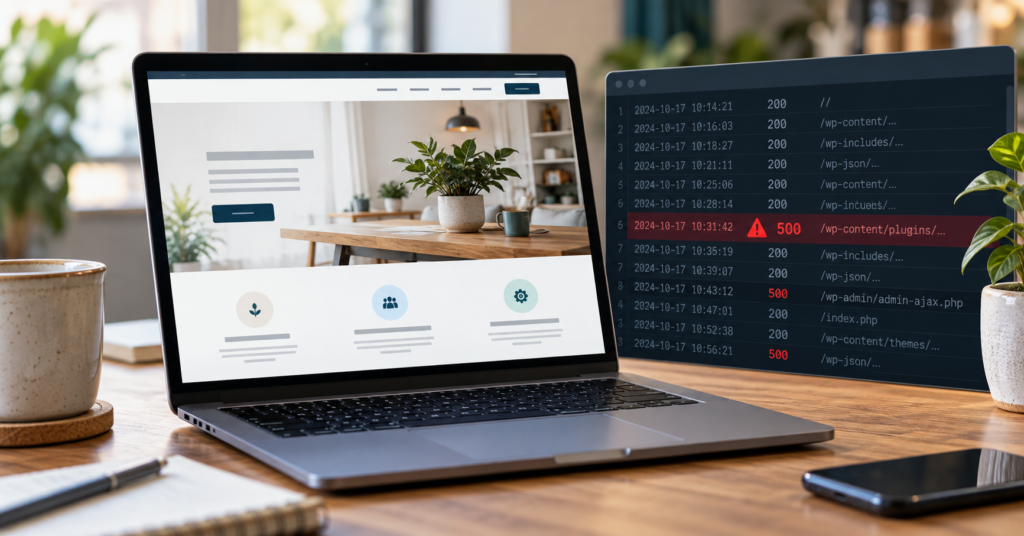
This week, while writing new articles for this website, I noticed something odd. Every now and then, a page in the WordPress dashboard failed to load and showed a server error. A refresh usually fixed it.
Nothing else had warned me. No uptime monitor, security plugin or CDN dashboard had sent an alert, no visitor had mentioned a problem and the website looked fine whenever I opened it.
The server’s PHP error log told a different story: hidden WordPress server errors, on and off, for about five weeks.
This article explains what we found, what we could and could not conclude from it, how it was fixed and how you can check your own WordPress website.
What the Error Log Showed
The PHP error log recorded 858 fatal PHP errors of the same type between 3 September and 9 October 2026.
| Period | Fatal errors in the log |
|---|---|
| 3–10 September | Occasional, on four days |
| From 17 September | On almost every day |
| Highest days | 131 on 18 September, 106 on 2 October |
| Overall | On 26 of 37 days |
A fatal PHP error stops the request it happens in, which normally results in an HTTP 500 server error. But the log does not say which requests were affected. The affected requests could have included public page views, dashboard pages, background tasks or automated requests. Some of the errors on the last day were triggered by our own diagnostic tests.
So the honest summary is: the log documented 858 fatal errors; how many public page views were affected cannot be determined from the log alone. It was not a complete outage. Most requests worked.
Why It Went Unnoticed
An intermittent error is easy to miss. In our case, several things may have helped hide it:
- Page caching. The website uses a page cache. Cached pages may have masked the problem for some visitors, although we do not have cache data that shows how many.
- Uptime monitoring checks too little. A typical uptime monitor requests one address every few minutes. If that request succeeds, it reports that everything is fine. An error that affects only some requests can easily fall between checks.
- The website looked normal. Whenever I opened it, it worked. Without a reason to read the error log, there was nothing to suggest a problem.
Why Hidden Server Errors Matter
We do not know exactly what these errors cost, and we are not going to invent a figure. But the risks are clear:
- Enquiries. A potential customer who sees an error page instead of your service page may not get in touch.
- Search engines. Google states that when it repeatedly receives 5xx server errors, it can temporarily reduce how often it crawls a website. That can delay new or updated pages appearing in search.
- Trust. An error page, even an occasional one, does not help a small business look reliable.
What Caused It
Every one of the 858 entries had the same message:
PHP Fatal error: Allowed memory size of 134217728 bytes exhausted
In plain terms, PHP was allowed to use 128 MB of memory per request, and some requests needed more.
The log also showed where PHP stopped when it ran out: while loading the rules file of the WordPress security firewall. That tells us where the limit was reached, not necessarily what used up the memory.
The firewall’s position matters for the fix. In its optimised mode, this type of firewall is loaded before WordPress starts. That is good for security, but it also means a memory setting made inside WordPress comes too late to help with errors at that point.
This is not a criticism of the plugin. The memory limit on the hosting account had simply become too low for the setup.
How It Was Fixed, Including the First Attempt That Did Not Work
The fix was to raise the PHP memory limit to 256 MB. Getting there took two attempts.
Attempt 1: a php.ini file in the home folder
The hosting account had a php.ini file in the home folder, one level above the website. Raising the memory limit there did not change anything: repeated test requests still produced server errors. On this hosting setup, that file was evidently not being applied to the website.
Attempt 2: a .user.ini file in the website folder
The website runs PHP through PHP-FPM (FastCGI). In that kind of setup, PHP can read per-directory settings from a file called .user.ini in the website’s own folder, usually public_html. Adding this line there worked:
memory_limit = 256MThree practical details:
- By default, PHP checks for changes to
.user.inievery five minutes, although the hosting configuration may use a different interval. - Some security plugins already use
.user.inifor their own settings. Add the line to the existing file rather than replacing it. - Setting
WP_MEMORY_LIMITinwp-config.phpwould not have been enough on its own, because the firewall loads before WordPress reads that file.
WordPress Site Health then confirmed a PHP memory limit of 256M.
The result
Before the fix, 17 of 80 test requests to the website returned a server error. After the fix, 0 of 80 did.
That is a clear improvement, but 80 requests are a snapshot, not proof that the problem can never return. We will keep checking the error log.
A second WordPress website on a similar setup had the same error and received the same fix.
Something Else We Noticed
WordPress Site Health also reported that the PHP opcode cache was full. This cache stores compiled PHP code so it does not need to be processed again on every request, and a full cache can affect performance. We have not measured the effect yet. Opcode cache size is usually a server-level setting, so it may need the hosting provider’s help.
How to Check Your Own WordPress Website
You do not need to be a developer to run these checks.
- Read the error log. In cPanel, look for a file called
error_loginpublic_html, or use the Errors tool under Metrics. Search for “Fatal error” and “Allowed memory size”. - Check the memory limit. In WordPress, go to Tools → Site Health → Info → Server and look at “PHP memory limit”.
- Look at Google’s view. In Google Search Console, go to Settings → Crawl stats and check the “By response” breakdown for server errors (5xx).
- Review your monitoring. If your uptime monitor only checks the home page, consider adding one or two important pages, such as a service or contact page.
- Pay attention to small signs. An occasional error in the dashboard is easy to dismiss with a refresh. It may be worth a look at the error log.
What This Taught Us
The most useful lesson is not about memory limits. It is that a website can look fine while the error log says otherwise, and the usual signals do not always catch it.
Regular maintenance is not only about clicking “update”. It also means reading the error log, checking server settings, finding the actual cause of a problem and then confirming that the fix worked.
Want Someone to Check Your Website?
If you are not sure whether your website has hidden problems, start with the free OTTA Website Health Check. For a closer look at an existing website, the €99 Small Website Improvement Review provides a written review.
If you would rather hand the technical side over, OTTA offers WordPress website maintenance for websites hosted with OTTA or with another provider.
Related guides: how to check whether your business website is actually working, what to do if your business website goes down and why small business websites become slow over time.
Sources
- Google: How HTTP status codes affect Google’s crawlers
- Wordfence: Optimizing the firewall
- PHP manual: .user.ini files
Find our advice useful?
Add OTTA as a preferred source on Google.