
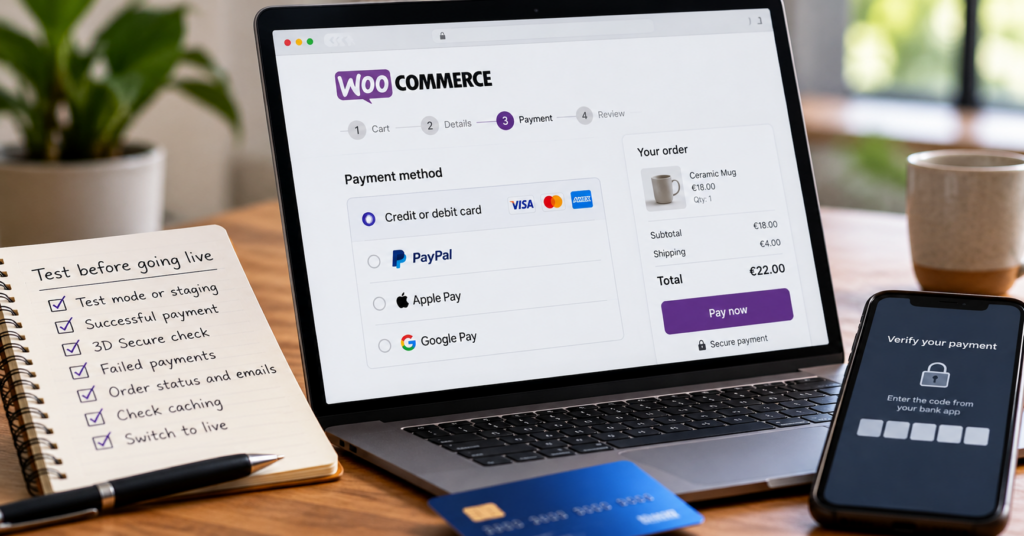
My day job is investigating why payments don’t go through on websites. When a payment fails, the cause is often not the payment provider. It sits in the shop around it: an order that never leaves “Pending payment”, a confirmation email in the spam folder, a cached checkout that shows one customer another customer’s address.
Test mode is where every shop should start. It simulates payments, including declines and bank checks, but only the cases you actually run. And it can’t show you what changes when you switch to live keys. A shop that passed one happy test order in test mode isn’t ready yet.
Before a shop takes its first real order, I’d test WooCommerce payments in this order:
- Pick the right test setup: test mode, sandbox or staging.
- Place a successful test order, including a 3D Secure check.
- Force the payments that fail and see what the customer sees.
- Check what happens after the payment: order status, webhooks, emails, stock.
- Make sure cart, checkout and account pages are not cached.
- Switch to live carefully and watch the first real orders.
The rest of this article goes through each step and what I look for.
Test mode, sandbox or staging: which one do you need?
A staging copy is the cleaner option, before and after launch. You can test changes there without affecting the live shop, provided the staging environment is properly isolated. If the shop isn’t public yet and there’s no staging copy, testing on the real site in test mode works too, as long as you remember to switch it over and clean up afterwards. Once real customers are buying, test on staging only.
The names differ by provider. With WooPayments, test mode runs simulated payments on your real account. Sandbox mode creates a separate test account that can never take real money, and it is what WooCommerce recommends for staging sites. Stripe uses test API keys that start with pk_test_ and sk_test_. PayPal needs a sandbox account with its own sandbox credentials.
Two things catch people out:
- Cloned sites. Copy a live shop to staging and both copies can end up connected to the same payment account. WooPayments has a “safe mode” for exactly this situation. Other gateways don’t warn you, and webhooks from your live payments can land on the staging copy.
- Staging behind a password. If your staging site is protected with a login prompt, the payment provider can’t reach it to report back. Payments go through, orders stay pending. More on that in the webhooks section.
Test a successful payment, including 3D Secure
Start with the easy case. On a Stripe-based gateway, card number 4242 4242 4242 4242 with any future expiry date and any CVC gives you a successful payment. Place the order as a guest, not as the admin. Admins see a different shop.
Then test 3D Secure. In Ireland and the rest of the EEA, Strong Customer Authentication rules mean most card payments need that extra step: a code, a banking app confirmation, a pop-up from the bank. Stripe’s card 4000 0027 6000 3184 asks for authentication on every payment, so you see the challenge window and can test both “complete” and “fail”.
Do this on a phone as well as a laptop. On mobile the customer often has to switch to the banking app and come back. If your checkout loses the cart on the way back, you find out here and not from an annoyed customer.
If you offer Apple Pay or Google Pay, check them on a real iPhone and a real Android phone. Wallet buttons only appear on supported devices and browsers, so a missing button on your desktop doesn’t tell you anything.
Test the payments that fail
Most guides skip this part, and it is where shops lose money quietly. A customer whose payment fails with a confusing message doesn’t try again. They leave.
These are the cases I’d run on any shop:
- Declined card. Stripe’s 4000 0000 0000 0002 is always declined. The customer should see a clear message and still have a full cart.
- 3D Secure cancelled. Close the bank window instead of confirming. Same expectation: a message, the cart intact, no duplicate order.
- PayPal cancelled. Go to PayPal, then click “Cancel and return”. You should land back on the checkout, not on an error page or an empty cart.
- Double click on “Place order”. Impatient customers do this. You want one order, not two.
- Back button after paying. Pay, then hit back in the browser. Nothing should be charged twice.
After each case, open WooCommerce → Orders. A failed payment should show as “Failed” or “Pending payment”, and the order notes usually say why. WooCommerce’s own guide lists the notes you’ll see. Get used to reading them now, while the orders are fake.
Check what happens after the payment
The customer clicked pay and saw a thank-you page. A successful payment is only part of the process. There are four more things worth checking.
The order status changes. A paid order for physical goods normally moves to “Processing”. Orders with only virtual and downloadable products can go straight to “Completed”, but that depends on the product settings and on how the gateway reports the payment. Decide which status you expect for each type of product, then check that the test orders match. If a paid test order sits on “Pending payment”, stop and find out why before going further.
The webhook arrives. Most gateways don’t rely on the customer’s browser to confirm a payment. They send a separate message, a webhook, from their server to your site. If that message is blocked, the money arrives and WooCommerce never hears about it. Typical causes: a security plugin or firewall rejecting the request, a password-protected staging site, or a webhook URL that still points to an old domain. Your gateway’s dashboard has a webhook log. Open it and check that each test order shows a delivered event, not an error.
Emails go out. You should get a “New order” email, the customer should get an order confirmation. Send the test order to a Gmail and an Outlook address and look in spam too. WordPress sends mail through the server by default, and those emails often land in spam or don’t arrive. If yours do, set up sending through a proper mail account with SPF and DKIM records for your domain.
Stock and totals add up. Check that stock went down by the right amount, and that product prices, shipping, coupons and VAT add up to what was charged. A working payment only tells you the shop charged the amount it calculated. Whether the VAT rates you set up are the right ones for your products is a question for your accountant, not for a test order.
Make sure the checkout isn’t cached
Caching makes a shop fast, and a wrong cache setting is one of the common reasons a checkout breaks. A cached page is built once and then shown to everyone. On a product page that’s fine. On a checkout, it’s how a customer ends up looking at someone else’s name and address, or at a cart that empties itself.
Three different things need handling, and they’re often set in different places:
- Full-page cache. Cart, checkout, my-account and the order-received page should be excluded, so each visitor gets a freshly built page.
- Dynamic requests. The
wc-ajaxrequests that update cart and checkout, and/wp-json/wc/store/, which the newer block-based cart and checkout use, should never be answered from a cache. - Cookies. Once a visitor has WooCommerce cart or session cookies, the cache should bypass them, otherwise a cached page can ignore what’s in their cart.
WooCommerce’s caching guide has the details. Most caching plugins handle the page exclusions on their own. Server-level caches and CDNs often don’t, and you won’t see a setting for them in WordPress.
The second trap is script optimisation. “Minify”, “combine” or “delay JavaScript” settings can stop the “Place order” button from doing anything. If the checkout fails after you changed a speed setting, switch that setting off for the checkout first.
A simple check: open the shop in two different browsers, put different products in each cart and go to checkout in both. Each browser should only ever show its own cart.
Going live: switch carefully, then watch the first orders
Test mode and live mode use different keys, different accounts and sometimes different webhook settings. So everything you just tested can still break at the switch.
When a shop goes live, I’d do this:
- Switch the gateway to live mode and enter the live keys. Check that the “test mode” notice is gone from the checkout.
- Check the live webhook settings separately. Some gateways keep test and live webhooks apart, so a working test setup doesn’t mean the live one is configured.
- Read your payment provider’s own go-live guide before you place any order yourself. Providers handle this differently: some recommend a small live transaction, Stripe asks you not to test with real card details in live mode. A payment from your own card to your own merchant account can also be declined by fraud rules, and PayPal may restrict payments between linked accounts, so it isn’t a reliable test anyway.
- Once real customers order, compare the first orders with the gateway dashboard: same amount, matching status, emails sent.
- Handle the first refund from inside WooCommerce, not from the gateway, and check that it shows up in the gateway too.
For the first week, look at WooCommerce → Orders every day and filter for “Pending payment”. A single pending order is worth checking. Several unexpected pending orders in a row need investigating, especially if the payment provider shows the matching transactions as successful.
Common questions
Can I test WooCommerce payments without a staging site?
Yes, as long as the shop isn’t open to customers yet. Put the gateway in test mode on the real site, run the tests, then switch to live. Once the shop is public, test changes on a staging copy instead.
Why is my WooCommerce order stuck on “Pending payment”?
An order marked “Pending payment” hasn’t had its payment confirmed. That can mean the customer never finished paying, or that the payment went through and WooCommerce never heard about it. Check whether the payment actually succeeded in your gateway dashboard before investigating webhooks, security plugins or checkout errors.
Do I need to test 3D Secure for an Irish shop?
Yes. Strong Customer Authentication applies to card payments across the EEA, so many of your customers will see a bank check at checkout. If that step fails on mobile, those sales fail with it.
Should I delete test orders before going live?
Only the simulated ones from test mode, and moving them to the trash is enough. Anything that moved real money stays, so your bookkeeping and the gateway’s records match. WooPayments marks its test orders so you can find them, other gateways may not.
Looking finished and being finished
Almost nothing on this list is visible to a visitor. A checkout can look perfect and still lose orders to a blocked webhook or a cached page. The same is true for sites that don’t sell anything: a contact form whose messages never arrive, a booking page that stops working after a plugin update.
When I build a WordPress website for a small business, I test the parts that move messages or money before I hand it over. The design is what people see on day one. Whether the site still does its job after the first update is what they notice six months later.
Find our advice useful?
Add OTTA as a preferred source on Google.