
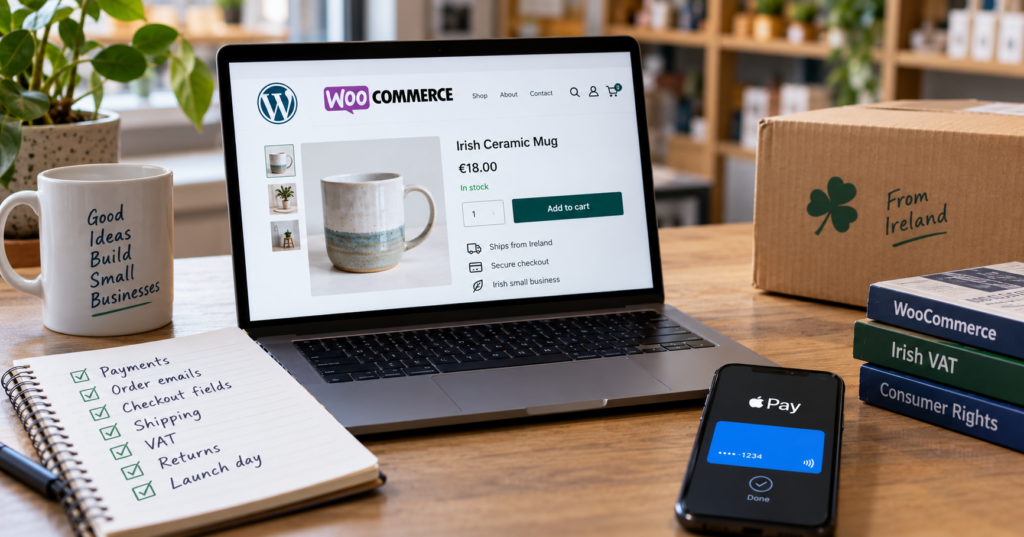
A WooCommerce shop can look finished weeks before it is ready. The product pages render, the cart takes items, the checkout page loads. None of that tells you whether the money lands in the right account, whether the customer gets a confirmation, or whether your returns page would hold up if a customer complained to the CCPC.
Below is what I would test before a small shop in Ireland takes its first real order. For a small shop with a modest product range, most of it fits into a day. Checking whether payment methods actually work on websites is a big part of my day job, so the payments section is the longest.
Payments: test with real money, then refund it
Test mode proves that the checkout talks to the payment provider. It does not prove that the live keys are in, that the account is fully verified, or that payouts go to the business bank account and not to an old one. So after the sandbox tests, I’d run at least one real order on the live site.
What to check:
- Live mode is on and the keys belong to the right account. A gateway still in test mode, or live keys from another account pasted in during setup, is a classic launch-day mistake.
- A real card order goes through. Create a hidden product with a small price, buy it with your own card, then refund it from the WooCommerce order screen. Check the provider’s minimum charge and refund fees first. Some keep the processing fee on a refund, so the test isn’t always free.
- The refund reaches the card. The refund button in WooCommerce only works if the gateway supports refunds from inside WooCommerce. If it doesn’t, the shop owner has to log into the provider’s dashboard for every return, and should know that before the first one.
- Strong customer authentication works. EU cards often ask for a confirmation in the banking app (3D Secure). Test at least one card that triggers it, on a phone, because the switch to the banking app and back is where it tends to break.
- Webhooks point to the live domain. Depending on the gateway, payment confirmations may reach the shop through webhooks. If a webhook is needed but missing, or still points to the staging URL, a payment can succeed at the provider while the order in WooCommerce sits on “Pending payment”. The customer is charged and the shop owner never sees an order to ship.
- A failed payment fails cleanly. A declined card should show a readable error and leave the cart intact, not an empty page or a vague “something went wrong”.
- Wallets are set up for the live domain. Apple Pay usually needs the domain registered with the provider, so a button that worked on staging can disappear after the move.
Check the order status after each test too. A paid physical order should land on “Processing”. If it lands on “On hold” or stays on “Pending payment”, something between the provider and the shop is not talking.
Order emails: check they arrive, not just that they send
WooCommerce can send several emails per order, depending on the order status and which emails are switched on under WooCommerce → Settings → Emails. Typically the shop owner gets “New order”, and the customer gets “Processing order”, later “Completed order”, and “Refunded order” if it comes to that. Check that the ones the shop relies on are enabled. WooCommerce reports them as sent the moment it hands them to the server. Whether they arrive is a different question.
Use two email addresses for the test orders, ideally one Gmail and one Outlook, and check three things. Did both arrive, and in the inbox rather than spam? Is the sender an address on the shop’s own domain, not “wordpress@” or a Gmail address? Does the shop owner’s “New order” email reach the person who actually packs the parcels?
That last one is easy to miss. The admin email address in WordPress is often the developer’s, or an old address from when the site was built.
If emails go missing, the cause is usually the same as with contact forms: no proper SMTP sending and missing SPF, DKIM or DMARC records on the domain. I’ve written that up in detail in why your WordPress contact form isn’t sending emails. For a shop it matters more, because a customer without an order confirmation tends to assume the order didn’t go through and buys a second time, or asks the bank for the money back.
Checkout fields: fill them in like an Irish customer would
Irish addresses don’t follow the UK or US pattern that a lot of themes and checkout plugins assume, so the test orders should use real Irish address patterns: a rural townland address, a Dublin address with a postal district, and one Northern Ireland address.
In a standard WooCommerce install the Eircode field is optional for Ireland, and County is a dropdown of Irish counties. Themes, address autocomplete plugins and some payment gateways change that. I’ve seen forum threads where the field said “optional” and the checkout still refused to continue without it. Submit one order with an Eircode and one without, and check that the result matches what the shop owner wants.
Whether the Eircode should be required is a real decision, not a default to accept. Rural addresses without an Eircode are hard for couriers to find. On the other hand, plenty of people don’t know their Eircode by heart and will leave instead of looking it up. I’d ask the shop owner what their courier needs and decide from that.
The other checks:
- A Northern Ireland customer picks United Kingdom as the country and enters a BT postcode. If the shop only sells to Ireland, or has no shipping zone for the UK, that customer can’t order at all. Some shops want that. Many don’t realise it.
- The phone field accepts 087 numbers, +353 numbers and 048 or +44 numbers. Strict validation plugins sometimes reject one of them.
- The address fields look sensible on a phone: Eircode not hidden below the keyboard, the County dropdown usable on a small screen.
If the shop sells on both sides of the border there is more to it, from currency to delivery. I’ve covered that in selling in Ireland and Northern Ireland.
VAT: set it up once, then check one product per rate
Ireland has four VAT rates that matter for a shop: 23% standard, 13.5%, 9% and 0% (Revenue, current rates). The accountant determines which rates apply to which products. The WooCommerce setup needs to reflect those decisions correctly.
In WooCommerce that comes down to a few settings:
- Prices entered with or without VAT. Irish shops selling to consumers usually enter prices including VAT, because that is the price the customer has to see. If the setting says “exclusive” but the prices were typed in with VAT, VAT gets added twice and every price at checkout is too high.
- Tax classes. WooCommerce comes with Standard, Reduced rate and Zero rate. Ireland has two reduced rates, so it needs one class more. Each product then needs the right class. Products added in bulk tend to end up on Standard.
- Displayed vs charged. Put one product of each rate in the cart and compare three numbers: product page, cart, and the VAT line on the order email. All three should agree.
If the shop ships to other EU countries, there is one more thing to raise with the accountant. Once B2C distance sales of goods to other EU countries pass €10,000 a year in total, VAT is due at the customer’s country’s rate, usually declared through Revenue’s One Stop Shop (InterTradeIreland on the OSS). WooCommerce can charge per-country rates, but only if someone sets them up. How sales to Northern Ireland are treated depends on the details, so that’s a question for the accountant too.
Returns and terms: the page most shops copy from somewhere else
The returns page is the one I’d read most carefully, because its text often comes from a UK template or a supplier’s site. I’m not a solicitor and wouldn’t write these pages for a client. But I’d read them before launch, because a few points are easy to check against the law itself.
Under the Consumer Rights Act 2022, someone buying online can cancel within 14 days of receiving the goods, for any reason (section 113). The shop has to tell them about that right and offer a model cancellation form. If it doesn’t, the cancellation period is extended by up to 12 months (section 114). The refund is due within 14 days of the customer telling the shop they are cancelling, although for goods the shop can hold it back until the item comes back or the customer shows proof of sending it. The CCPC has issued compliance notices to online sellers for missing that deadline, for example Ice Bath Limited in 2025.
What to look for on the page:
- The 14-day period is stated correctly, and it runs from delivery, not from the order date.
- There’s a cancellation form, or a link to one, and an email address to send it to.
- No “no refunds”, “credit note only” or “contact the manufacturer” wording. Misrepresenting a customer’s statutory rights is an offence under the Act.
- If some products are excluded from the cancellation right, the page says which ones and the product pages say it too. The law has a defined list of exceptions, for example goods made to the customer’s specification, perishable goods, and sealed goods that can’t be returned for health or hygiene reasons once unsealed. Anything outside that list can’t simply be declared non-returnable.
The CCPC’s buying online guide is written for customers, which makes it a good test: if the shop’s returns page contradicts it, the page is wrong.
Two more pages need to exist before launch. A privacy policy that names the payment provider, the courier and any email tool as places customer data goes. And a cookie banner that actually blocks analytics and marketing cookies until the visitor says yes, not one that only displays a notice.
Shops selling regulated products, such as medicines or alcohol, have extra registration and display rules on top of this. Those sit with the business owner and the regulator, but the website has to show what they require.
Shipping and stock: try the awkward cases
Shipping looks fine as long as you only test your own address. WooCommerce matches a customer to the first shipping zone that fits, from the top of the list down. An address that fits no zone gets a “no shipping options” message, and the sale ends there.
So test a Dublin address, a rural address, an island address if the courier charges extra for them, and a Northern Ireland address. For each one, check that the right rate shows up and that the free delivery threshold, if there is one, behaves as the owner expects with a discount code applied.
For stock, three questions:
- What happens when a product hits zero? It should either disappear, show “out of stock”, or accept backorders. Whichever it is, the owner should have chosen it.
- Who gets the low stock email? Same issue as order emails: often it goes to whoever set up the site.
- How long are unpaid orders allowed to hold stock? WooCommerce’s “Hold stock” setting cancels orders that are still on “Pending payment” after a set number of minutes. If that time is short and the payment confirmation from the provider arrives late, you can end up with a paid order that WooCommerce has already cancelled. Set the time to fit the payment methods the shop offers, and test what happens when a payment confirmation arrives late.
How do I make a WooCommerce shop go live?
Back up, switch off the search engine block, confirm HTTPS and caching, move the payment settings to the live domain, then place one real order. Most launch-day problems come from moving the shop from a staging copy to the live domain, so the order matters:
- Take a full backup of files and database right before the switch, and check that it can be downloaded.
- Untick “Discourage search engines from indexing this site” under Settings → Reading. Staging sites have it on, and it’s easy to miss.
- Check that every page loads over HTTPS with no mixed-content warnings, especially product images that were uploaded on the staging URL.
- Make sure cart, checkout and my-account are excluded from page caching. WooCommerce’s own documentation says these pages have to stay dynamic (configuring caching plugins). Most caching plugins handle it on their own, but a server-level cache from the host may not. A cached checkout can show one customer another customer’s cart.
- Update the payment provider’s webhook URLs and wallet domains to the live domain (see the payments section).
- Place a small real-money test order and refund it. Mark all test orders clearly, and check with the accountant before deleting any that involved real money, because the payment and bookkeeping records may need to be kept.
The one rule after launch: never push the staging database over the live one again. Before launch it is harmless. After the first real order it overwrites orders, customers and stock levels. Changes to a live shop go the other way: copy live to staging, test there, then move only the files or settings that changed.
After that, you want to know quickly if the shop goes down. A free uptime monitor is enough to start with. What to do when it does go down is in what to do if your business website goes down.
What are the downsides of using WooCommerce?
With WooCommerce, hosting, updates, security and backups are your responsibility, or the responsibility of someone you pay. On a hosted platform like Shopify the provider runs most of that, even though the shop still needs setting up and looking after, and a mistake in any of them can stop the checkout.
Performance matters too, particularly at checkout. Cart and checkout can’t be cached, so every visit to them is real work for the server. A cheap hosting plan that is fine for a brochure site can feel slow at checkout. If your shop already feels sluggish, why small business websites become slow over time covers the usual causes.
Then there’s the question of plugins. Features that come built in elsewhere, such as some payment methods, shipping rules or product options, often need an extra plugin in WooCommerce. Each one is one more thing to update and test.
What you get in return is control: the shop and its customer data sit on a server you choose, as long as you hold the hosting account, the domain and admin access yourself. WooCommerce itself is free; you pay for hosting, any paid extensions and whoever looks after it, but there’s no monthly platform subscription.
After launch: a shop needs more care than a brochure site
On a five-page business website, a plugin update that goes wrong means a broken layout for an hour. On a shop it can mean a checkout that silently fails while the product pages look perfect, and nobody notices until a customer rings to ask where their order is.
So updates on a shop need a different routine. Test WooCommerce and payment plugin updates on a staging copy with a test order before they go live. Back up more often than you would for a brochure site, because restoring last week’s backup also means losing last week’s orders. And after an update, check the site by placing an order, not just by opening the homepage.
If you’d like a second pair of eyes on your shop before it goes live, get in touch. You can also start with the free website health check, or read more about ongoing WordPress maintenance.
Find our advice useful?
Add OTTA as a preferred source on Google.