
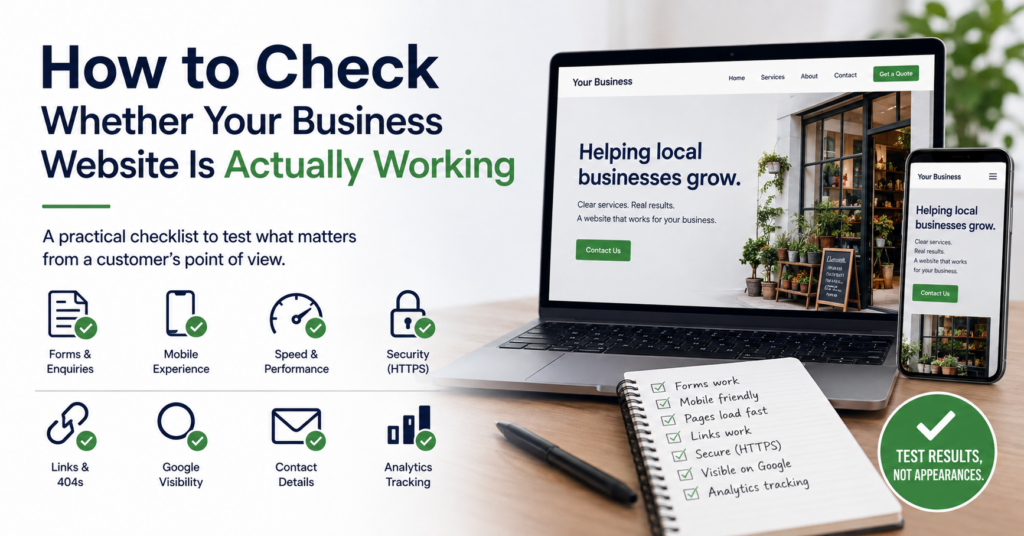
How to check whether your business website is actually working sounds like a simple question.
But many business owners only check whether the homepage opens.
If it loads, the website is assumed to be fine.
That is not enough.
A website can look normal while important parts are broken: forms may not deliver, links may lead nowhere, mobile navigation may fail, pages may return errors or customers may get stuck before they can contact you.
I would test the website from the customer’s point of view rather than only from the administrator’s point of view.
Start With the Main Customer Journey
The first thing I would ask is:
What do you actually want a visitor to do?
For a small business, that might be:
- Call
- Send an enquiry
- Request a quote
- Book an appointment
- Buy a product
- Find directions
Then test that complete journey from beginning to end.
Do not only check whether the button exists.
Click it.
Complete the form.
Submit it.
Check what happens afterwards.
If the website looks good but the main customer journey fails, the website is not really working.
Test the Contact Form With a Real Enquiry
This is one of the first checks I would run.
Use the contact form as if you were a real customer.
Then check:
- Does the form submit successfully?
- Does the website show a confirmation?
- Does the message reach the correct inbox?
- Does it land in spam?
- Does the reply address work correctly?
A form can display “message sent” even when the email never reaches the business.
That is why the test has to continue beyond the website itself.
If email delivery is involved, the problem can be caused by the sender address, SMTP configuration, spam filtering or incomplete email authentication settings.
The visitor only sees that the form looked successful.
The business may simply see no enquiry at all.
If your website receives visitors but very few enquiries, this is one of the first areas worth checking. I cover the wider conversion problem in Website Visitors but No Enquiries: What Small Businesses Should Check.
Check Every Important Phone Number and Email Link
Phone numbers and email addresses should not just look correct.
They should work.
On a mobile phone, tap the phone number.
Does it open the dialler with the correct number?
Tap the email address.
Does it open the correct email account?
I would also compare the details across:
- The website header
- The footer
- The contact page
- Google Business Profile
If one of those contains an old number or email address, customers may be contacting the wrong place without anybody noticing.
Check the Website on a Real Mobile Phone
Do not rely only on the mobile preview inside a website editor.
Use a real phone.
Open the website and try to complete the same tasks a customer would.
Check:
- Does the menu open properly?
- Is the text readable?
- Can buttons be tapped comfortably?
- Do forms fit on the screen?
- Are pop-ups covering important content?
- Do images break the layout?
- Does the page feel responsive?
A website can work perfectly on desktop and still frustrate a large part of its audience on mobile.
Click the Navigation Links
Menus are easy to overlook because business owners use them so often that they stop thinking about them.
I would click every main navigation item.
Check that:
- The page opens
- The URL is correct
- The page is not empty
- The visitor does not land on an old version
- There are no redirect loops
Also check buttons inside important pages.
A homepage may be fine while a “Get a Quote” button still points to a deleted page.
Look for 404 Pages and Broken Links
A 404 error means the requested page cannot be found.
Some 404s are unavoidable over the lifetime of a website.
What matters is whether important customer paths are affected.
I would pay particular attention after:
- Changing page URLs
- Deleting old services
- Rebuilding the website
- Changing domains
- Migrating to new hosting
If an old page has been replaced by a new one, a proper redirect may be needed.
Otherwise visitors and search engines can continue following an address that no longer exists.
Check the Pages Customers Actually Use
You do not need to inspect every old blog post every week.
I would prioritise the pages that matter to the business.
Usually that means:
- Homepage
- Main service pages
- Pricing page
- Contact page
- Quote or enquiry page
- Checkout or booking pages
If analytics are available, I would also look at the pages receiving the most visitors.
Those are the pages where a broken link or unclear next step can have the biggest effect.
Check Whether the Website Is Actually Secure
The website should open over HTTPS without a browser warning.
Check both:
- The homepage
- Important forms and checkout pages
If the browser shows a certificate warning or “Not secure”, I would investigate that immediately.
A visitor may not understand the technical reason.
They only see a warning from their browser telling them not to trust the connection.
If you want to review the wider security side, see Website Security Basics for Small Businesses.
Check Whether Important Forms Still Work After Updates
Updates are necessary, but they can occasionally expose compatibility problems.
After important WordPress, theme or plugin updates, I would retest anything the business depends on.
That might include:
- Contact forms
- Booking systems
- Checkout
- Payment gateways
- Member logins
The fact that the homepage still loads does not prove those systems still work.
Check the Website From a Logged-Out Browser
This is a simple check that can reveal problems surprisingly quickly.
Website administrators do not always see exactly what a normal visitor sees.
Caching, logged-in permissions and admin tools can change the experience.
I would occasionally open the site in a private or incognito window.
Then test:
- The homepage
- Navigation
- Contact forms
- Important calls to action
- Checkout or booking where relevant
If possible, also test from another device.
Check Whether Google Can Still Access Important Pages
A website can work for people and still have a search visibility problem.
If an important page should appear in Google, I would occasionally check it in Google Search Console.
Make sure the page has not accidentally become:
- Noindex
- Blocked from crawling
- Canonicalised to the wrong URL
- Redirected somewhere unexpected
This is especially worth checking after a redesign, migration or major SEO-plugin change.
If the problem is specifically that a page or website is missing from Google, I would work through Why Is My Business Website Not Showing on Google? rather than treating it as a general website fault.
Check Speed Where It Matters
A website can technically work and still be too slow to be useful.
I would test important pages on mobile and use a performance tool such as PageSpeed Insights for additional information.
Look at the experience rather than only the score.
Ask:
- Does important content appear quickly?
- Does the page respond when tapped?
- Does the layout move around while loading?
- Are large images slowing down the first screen?
A website that makes customers wait is functioning technically, but it may still be failing commercially.
For a deeper speed check, see How Fast Should a Small Business Website Load?.
Check Whether Analytics Are Still Recording Visits
If you rely on analytics, I would also make sure they are still working.
A plugin update, consent configuration or code change can stop tracking without visibly changing the website.
That does not affect the customer directly, but it affects your ability to understand what customers are doing.
I would check whether recent visits are still appearing and whether the numbers look plausible.
If you track specific actions such as form submissions or downloads, test those too.
Check Whether the Website Still Feels Trustworthy
A website can work technically and still give visitors reasons to hesitate.
I would look for small signs of neglect such as:
- Outdated contact details
- Broken images
- Old opening hours
- Inconsistent information between the website and Google
- Pages describing services the business no longer provides
Those are not always functional failures in the technical sense, but they can still stop a visitor from taking the next step.
I cover that side in more detail in What Makes a Small Business Website Trustworthy?.
Do Not Assume a Successful Page Load Means Success
This is the central point.
A website can pass the simplest test:
the page opened.
and still fail the business.
For example:
- The enquiry form does not deliver
- The mobile menu is difficult to use
- The quote button points to the wrong page
- Google cannot index an important service page
- The checkout fails at payment
That is why I prefer testing outcomes rather than appearances.
What I Would Check First
If I wanted a quick functional check of a small business website, I would work through it in roughly this order:
- Open the website in a private browser window.
- Test it on a real mobile phone.
- Submit a real contact enquiry.
- Check the message reaches the correct inbox.
- Tap phone and email links.
- Click the main navigation and important buttons.
- Check key service, pricing and contact pages.
- Look for broken links or 404 errors.
- Confirm HTTPS works properly.
- Test any booking, checkout or payment process.
- Check important pages in Google Search Console.
- Confirm analytics are still recording visits.
That gives you a useful overview very quickly.
If one of those checks exposes a problem, that is the point where I would move into the more detailed diagnosis rather than trying to improve everything at once.
A Simple Website Check Can Catch Problems Early
If you want a broader structured review, the Free Website Health Check takes you through 25 practical questions covering clarity, mobile usability, enquiries, SEO basics, security and maintenance.
You receive an immediate score, category results and a prioritised list of areas worth checking. You can also download the results as a PDF.
Start the Free Website Health Check
When an Independent Review Helps
Sometimes everything appears to work individually, but the website still does not feel effective.
That is where an outside view can help.
Our Small Website Improvement Review looks at an existing website and identifies practical issues without automatically assuming that the site needs a complete rebuild.
Final Thoughts
How to check whether your business website is actually working comes down to testing what customers need to do, not just whether pages appear on the screen.
Test forms.
Test contact routes.
Test mobile.
Test important links and customer journeys.
Then use the more detailed checks only where the first review shows that something is wrong.
A working website is not one that simply loads. It is one that lets the customer successfully do what the website was built for.
Find our advice useful?
Add OTTA as a preferred source on Google.