
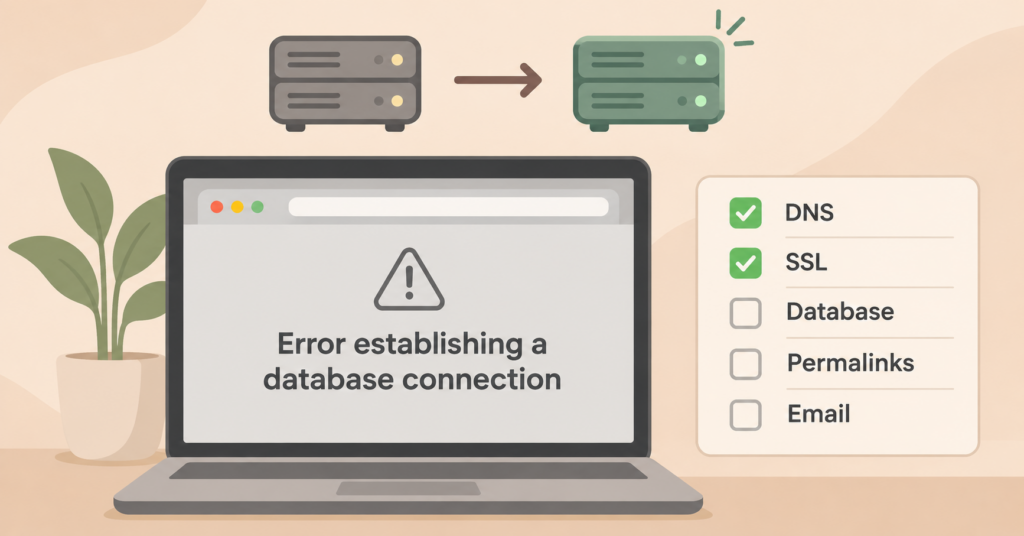
You moved your website to a new host, and now something is off. The site shows a blank page, a security warning or last month’s version. Or it looks fine, but the contact form has gone quiet.
A website broken after changing hosting usually hasn’t lost anything. A move has a handful of parts, and one of them didn’t come across. Below are the checks I run after every WordPress move, in the order I run them. Start at the top, because the first check decides whether the others apply yet.
One rule before anything else: don’t cancel the old hosting. As long as it runs, you still have a working copy of the site and your email.
Is the new server actually answering?
Often the problem isn’t the new host at all. Your domain still points to the old server for some visitors, or for you.
When you move a site, the domain’s DNS records change to the new server’s IP address. That change spreads gradually. Each record has a TTL (time to live), which tells other servers how long they may keep the old answer. With a short TTL, most people see the new server within an hour. With a TTL of a day, some visitors get the old site for a day.
That explains the most confusing symptom: you see the new site, a customer sees the old one, and edits you make seem to vanish.
How to check:
- Ask the new host for the server’s IP address.
- Enter your domain in a public DNS lookup tool such as whatsmydns.net and compare the A record with that IP. Check the domain with and without www.
- Open the site on your phone with Wi-Fi switched off. Mobile data uses different DNS servers than your home network.
If you changed the nameservers instead of just the A record, every record now has to exist at the new DNS provider. That includes the mail records. I come back to this under email.
If you can’t log in to the place where your domain’s DNS is managed, sort that out first. Who owns my .ie domain? explains how to find out who controls it.
“Not secure” or a certificate error after the move
The SSL certificate doesn’t travel with the site. The new host has to issue its own, and most hosts can only do that once the domain points to their server. So a certificate warning right after the DNS change is common. Don’t wait it out. Check in the new host’s control panel straight away whether the certificate was issued. If it failed, the cause is often DNS: the domain or www doesn’t point to the new server yet, or an old AAAA (IPv6) record still points to the old one.
What to do:
- Check that the DNS lookup above shows the new IP for both the domain and www.
- In the new host’s control panel, run the certificate tool again (often called AutoSSL or Let’s Encrypt). Make sure it covers both the domain and www.
- If the page loads but the padlock is missing, some images or scripts still load over http. That’s a URL problem, covered further down.
If the browser says “too many redirects” and your domain runs through a proxy service such as Cloudflare, check its SSL setting. “Flexible” in front of a server that forces https sends visitors in a circle. Once the new host has a valid certificate, set it to “Full (strict)“. It’s the only mode that also checks the certificate on your server. “Full” stops the loop too, but accepts any certificate, including an expired one.
More on the warning itself: Website not secure? What it means and how to fix it.
A white page, “critical error” or “Error establishing a database connection”
These three messages mean WordPress can’t start properly on the new server. Sometimes the migration is incomplete. Check that the WordPress files, uploads and database were transferred successfully before you change server settings. If they were, the cause is usually one of three settings that differ between hosts.
Database details in wp-config.php
“Error establishing a database connection” means WordPress can’t log in to its database. The new host gave the database a new name, user and password, often with an account prefix such as account_wpdb. Open wp-config.php and compare DB_NAME, DB_USER, DB_PASSWORD and DB_HOST with what the new control panel shows. Also check that the database user is actually assigned to the database. That step is easy to miss.
PHP version
“There has been a critical error on this website” or a blank white page often means a plugin or theme doesn’t run on the new server’s PHP version. An older site may have run on PHP 7.4 for years, and the new host starts it on 8.2 or 8.3.
- WordPress emails the site’s admin address when this happens, with a link to a recovery mode. Check that inbox first; the email names the plugin or theme that failed.
- The host’s error log shows the same information.
- To confirm the cause, you can switch to the old PHP version for a short test. Treat that as a diagnosis, not a fix: PHP 7.4 and older get no security updates. Update or replace the plugin or theme, then switch back to a current PHP version the same day.
Memory
If the error log mentions “Allowed memory size exhausted”, the new host gives WordPress less memory than the old one. Raise the PHP memory limit in the control panel, or add define( 'WP_MEMORY_LIMIT', '256M' ); to wp-config.php above the line that says “That’s all, stop editing”.
That line only raises WordPress’s own limit up to what the server allows. If the host caps PHP memory lower, it changes nothing, and the host has to raise the limit or you need a bigger package.
The homepage works, every other page shows 404
This one looks dramatic and takes a minute to fix. WordPress’s pretty URLs (/contact/ instead of /?page_id=12) depend on a file called .htaccess in the site’s main folder. The dot at the start makes it a hidden file, and many FTP programs and file managers don’t show or copy hidden files.
The fix: log in to wp-admin, go to Settings → Permalinks and click “Save Changes” without changing anything. WordPress then tries to write the file again. That only works if it’s allowed to write to the site’s main folder. If it isn’t, the Permalinks page shows the rules underneath. Create the .htaccess file in the main folder with the host’s file manager and paste them in.
If that doesn’t help, ask the new host whether the server runs nginx. Nginx ignores .htaccess, and the host has to set the rewrite rules in the server configuration.
Images missing, or links to an old or temporary address
WordPress stores full URLs in its database: in posts, menus, widgets and page builder settings. If the site was set up on a temporary address during the move (something like new-site.hostname.com or a staging subdomain), those URLs still point there. When the temporary address is switched off, images disappear and links break.
Check it like this: open a page, right-click a missing image and open it in a new tab. The address tells you where WordPress still looks for it.
Two fixes, depending on what you find:
- Wrong address: replace the old address with the real one across the database. Use a tool that understands WordPress’s stored settings, such as
wp search-replaceon the command line or the Better Search Replace plugin. A plain find-and-replace in the SQL file can break widgets and page builder layouts, because some values store the text length alongside the text. Take a backup before you run it. - Right address, file missing: the uploads folder didn’t copy completely. Compare the size of
wp-content/uploadson the old and the new server, then copy the missing years or months again.
If you use Elementor, also go to Elementor → Tools and click “Regenerate CSS & Data” after the replace. Otherwise the layout can still load styles from the old address.
Email stopped working, or the contact form went quiet
This is the problem people notice last, sometimes a week later, when a customer asks why nobody replied. There are two separate things here: your mailbox, and the email your website sends.
Your mailbox ([email protected])
Where your email arrives is set by the domain’s MX records. A move can break it in two ways:
- The nameservers changed and only the website records were copied to the new DNS. The MX records, plus SPF and DKIM, are missing. Mail bounces or goes nowhere. Before you switch nameservers, copy every record from the old DNS, not only the ones for the website.
- The mailboxes lived on the old hosting. With many hosting packages, email is part of the package. Cancel the hosting and the mailboxes go with it, including old messages. Move or export the mail before you cancel anything.
Test it from outside: send an email from a Gmail or Outlook address to your business address, and reply to it.
Your contact form
The form sends its messages from the web server. On a new server, those messages often land in spam or don’t leave at all, because your domain’s SPF record doesn’t list the new server.
The usual fix is an SMTP plugin that sends through your mail provider, using authenticated SMTP or the provider’s API, instead of through the web server. The plugin alone isn’t enough: the sender address has to belong to that mail account, and your domain’s SPF and DKIM records have to include the provider. I go through it step by step in WordPress contact form not sending emails.
Test the form after the move. Send one entry to yourself and check both the inbox and the spam folder.
Before you cancel the old hosting
I keep the old hosting for about two weeks after a move and only cancel it once all of this is true:
- A DNS lookup shows the new IP for the domain, with and without www, and the site opens on mobile data.
- Every page shows the padlock.
http://and the version without www both redirect tohttps://and your main address. - You can log in to wp-admin, and you’ve saved the permalinks once.
- You’ve opened the pages that matter most: homepage, contact, services, and the checkout or booking page if you have one.
- A test entry through the contact form arrived, and not in spam.
- An email from an outside address to your business address arrived, and your reply got back.
- The new host makes backups, and you’ve downloaded one full backup (files and database) of the old site to keep.
A few days after the move, look at Google Search Console for new 404 errors or pages that dropped out. If the address of any page changed during the move, Website redesign without losing Google rankings covers redirects.
When to hand it over
Most of these checks you can do yourself with a login to the control panel and wp-admin. I’d stop and get help when the database step doesn’t work after you’ve compared the details twice, when email has been missing for more than a day, or when the site takes payments or bookings and every hour counts.
If the site went down without a move, the order is different. What to do if your business website goes down starts there.
Moving WordPress sites and checking them afterwards is part of my website maintenance work. If you’re stuck halfway through a move, get in touch and tell me which of the steps above fails.
Find our advice useful?
Add OTTA as a preferred source on Google.