
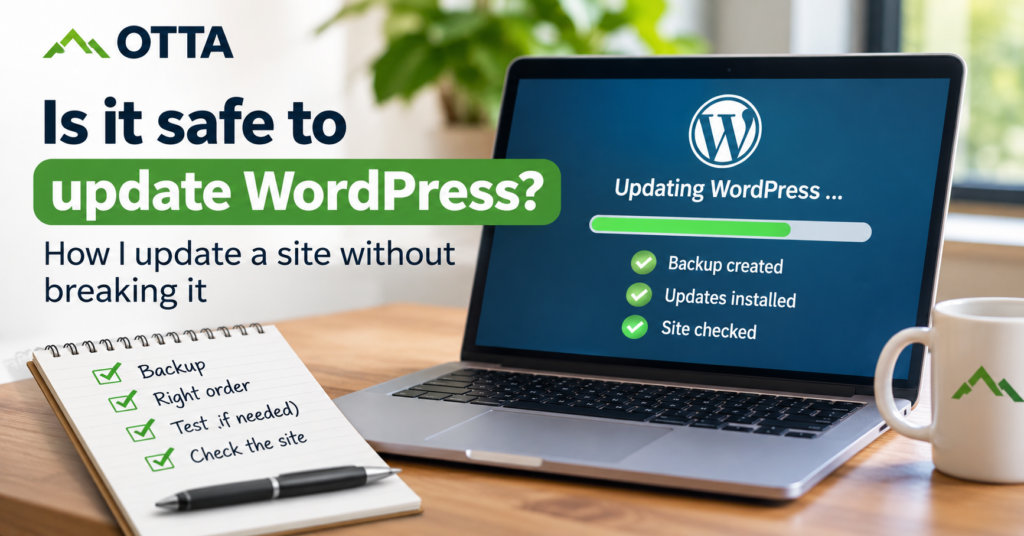
Short answer: yes, as long as you have a backup you can actually restore and you don’t update everything at once on the live site. Leaving WordPress alone feels safer. It isn’t. Nothing breaks today, the risk just piles up.
Most update disasters follow the same pattern. Someone logs in after a few months, sees 14 updates waiting, clicks “Update all” and the homepage turns into an error message. The update wasn’t really the problem. Fourteen changes at once, with no way back, was.
This is how I update my own WordPress sites, otta.ie and housesitter.ie. The same routine applies to sites under website maintenance.
What actually breaks when you update WordPress?
Core updates can break things too, mostly when an old plugin or theme relies on something the new version changes. The small security and bug-fix releases of core have installed themselves automatically since 2013, and most site owners never notice them.
Most problems start somewhere else:
- A plugin nobody maintains any more. A newer WordPress or PHP version expects something the old code doesn’t do.
- Two plugins that clash after one of them changes. Page builders, sliders and anything that hooks deep into WooCommerce are the usual suspects.
- A theme with copied template files. If someone copied WooCommerce templates into the theme years ago, a shop update can leave checkout pages with an old layout or missing fields.
- Caching. The site works, but visitors still get old styles from the cache, so the layout looks broken until the cache is cleared.
- The PHP version on the server. This is the update people forget, so it gets its own section below.
When WordPress catches a fatal error, for example from a plugin, it shows “There has been a critical error on this website” and tries to email a recovery link to the admin address. That email doesn’t always arrive, for instance when the site can’t send mail properly. The admin address is whatever is set under Settings → General. On sites handed over by a web designer, it’s often still the designer’s email. Worth checking today, whether you update or not. It’s one of the points in my handover checklist.
Why not updating is the bigger risk
When a plugin developer fixes a security hole, the details become public. From then on, automated scans look for sites still running the old version. Your site doesn’t have to be interesting to anyone. It only has to be on the list.
Waiting also makes the eventual update harder. One version step is routine. Three years of plugin versions plus a PHP change in one go is a small project, and that’s when things really do break. More on the basics in website security for small businesses.
Should you turn on automatic updates?
Since WordPress 5.5 you can switch on automatic updates for each plugin and theme, right in the plugin list.
The advantage: updates install on their own, without anyone having to log in. WordPress checks for them twice a day, as long as its scheduled tasks run. The downside: an update can happen without anyone testing it first, and you may only find out when a customer tells you. That matters most for the plugins the business depends on, like the shop, the booking system or the page builder.
If you use automatic updates, someone still needs to read the admin email and look at the site regularly.
How I update my own sites
- Fresh backup, and I know it restores. A backup you’ve never restored is a hope, not a backup (why copying files isn’t enough). Mine are stored away from the website’s server.
- Read what’s changing. For a small version step, a look at the changelog. For a major WooCommerce or page builder release, the release notes properly, because that’s where they say what was removed.
- Staging for the risky updates. A staging site is a private copy of the website. Major versions, WooCommerce, page builders and PHP changes go there first. If something breaks, the real site is untouched. A small security fix for a simple plugin goes straight to the live site, with the backup from step 1 as the way back.
- One at a time, never “Update all”. I normally update WordPress core first, then plugins one by one, the theme last. Before I start, I check whether a plugin or theme needs a different order. If something breaks, I know which update did it.
- Test what makes money. Not just the homepage. I send a test enquiry through the contact form and check that it actually arrives (contact forms fail quietly). On a shop I run a test order up to the payment page (how I test WooCommerce payments). And I open the menu on a phone.
- Then the live site, cache cleared, error log checked the next day. What passed on staging gets repeated on the live site. Some errors only show up when a scheduled task runs overnight. I wrote about those in hidden WordPress server errors.
When nothing goes wrong, the updates themselves are quick. The time goes into testing, and into the occasional month when something does break. Updates are also only one part of looking after a site. Backups, security checks and watching whether the site is up take time as well.
PHP updates are the ones that break old sites
WordPress runs on PHP, and PHP comes from your hosting. Hosts retire old PHP versions, sometimes with nothing more than an email warning that’s easy to miss.
WordPress.org currently recommends PHP 8.3 or newer. WordPress 7.0, released in May 2026, no longer runs on anything older than PHP 7.4. You can see your version under Tools → Site Health → Info → Server.
A jump from PHP 7.4 to 8.3 can break a site, because older plugins and themes use code that newer PHP no longer accepts. That’s why a PHP change always goes to a staging copy first: switch PHP there and click through the important pages. otta.ie runs on PHP 8.3.
What to do if an update already broke your site
- Check the admin inbox for an email titled “Your Site is Experiencing a Technical Issue”. It names the plugin or theme. Log in through the recovery link and deactivate it.
- No email? In your hosting file manager, open wp-content/plugins and rename the folder of the plugin you just updated, for example by adding “-off”. WordPress deactivates it.
- Layout broken but no error message: clear the cache, both the caching plugin and your browser.
- Still broken: find the last backup from before the problem and check what you would lose by restoring it. On a shop or booking site, restoring an older database can wipe the orders or bookings that came in since. If you can, look into the problem on a staging copy first.
What I wouldn’t do is spend hours experimenting on the live site while customers see an error. There’s a longer checklist for that situation in what to do if your business website goes down.
Who should be doing your updates?
If the steps above look manageable, do them yourself. Plenty of site owners do.
If you can’t, because the person who built the site is gone and you don’t have an admin login, sort that out first. I wrote about what to do when your web designer disappears and how to find out who owns your .ie domain.
And if you’d rather not deal with it at all, that’s what website maintenance is for. Not sure how far behind your site is? The free Website Health Check takes about five minutes.
Find our advice useful?
Add OTTA as a preferred source on Google.